You can link Assets to Features within Location Profile, which helps in allocating posters when building campaigns later. Once Assets are linked to your Location, any Features associated with them can be assigned within the Location profiler
Roles required
Admin role - Full access
Superuser - Reduced access - Cannot delete and download
Start linking assets Features your Stores in Store Profile
1. Select Store Profile from the left side menu
2. Select your Store
3. Go to Fixtures and Fittings tab
4. Select Marketing Assets, this will display a list of all assigned Assets currently linked to that store
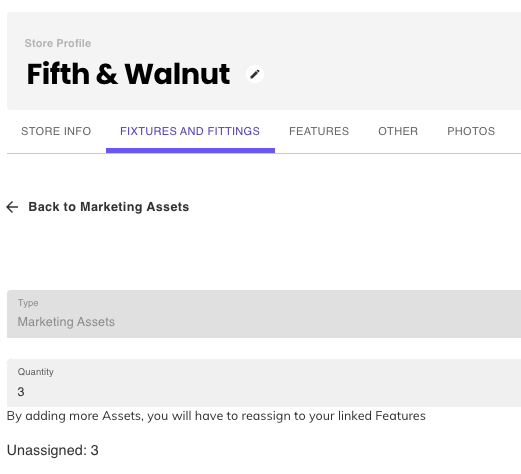
5. Select the Asset you want to link to features. Once selected it will show
- Asset type
- Quantity (You can set the quantity amount in here)
- A number of how many Assets are unassigned
6. Divide the asset QTY amongst the available features.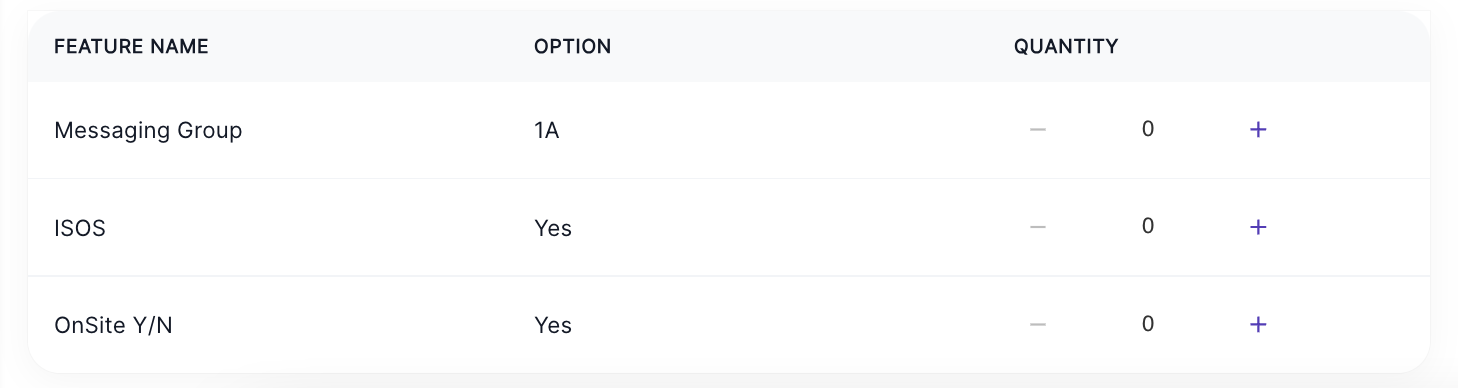
Was this article helpful?
That’s Great!
Thank you for your feedback
Sorry! We couldn't be helpful
Thank you for your feedback
Feedback sent
We appreciate your effort and will try to fix the article