You can now send multiple campaigns to Kitting and Logistics and create a new kit directly from Campaign Builder.
Roles required
Admin role - Full access
Superuser - Reduced access - Cannot delete and download
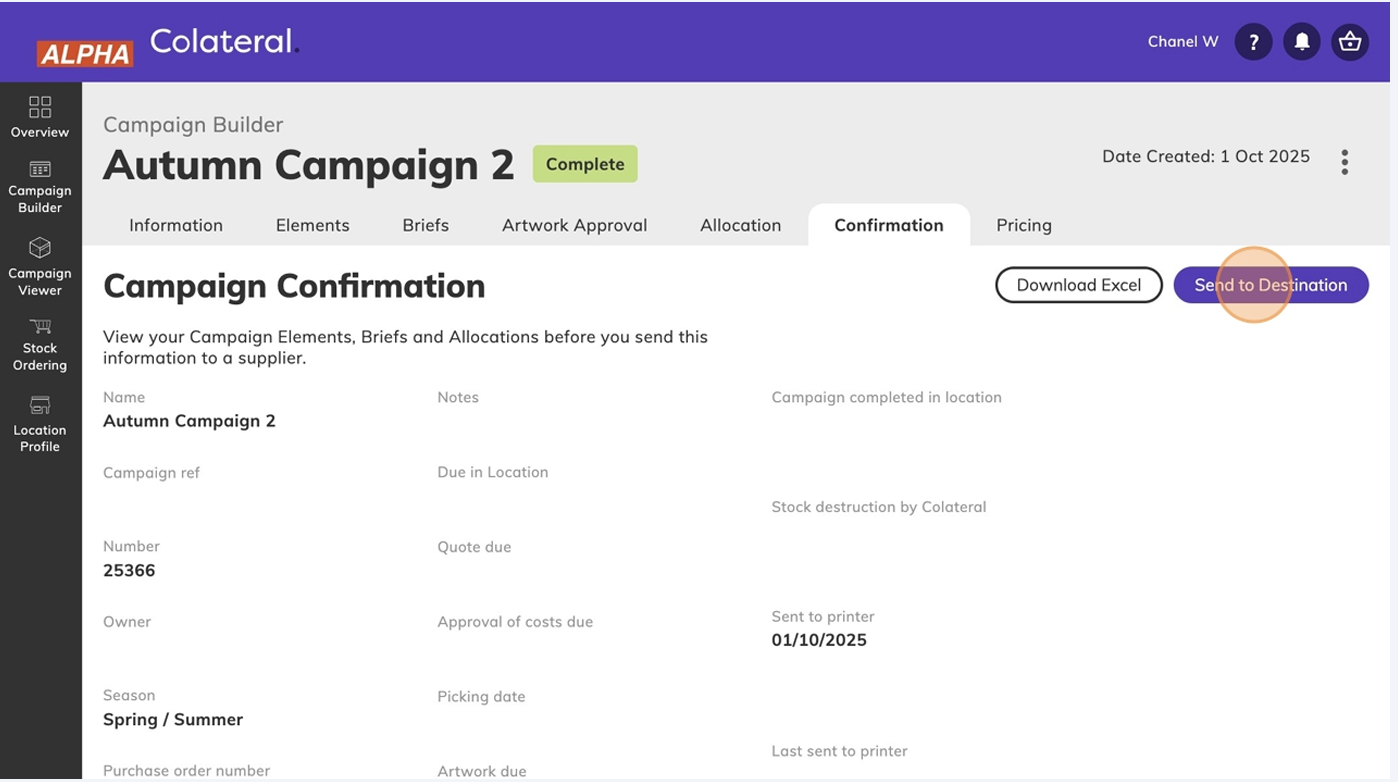
- Once campaign is in complete status, click "Send to Destination"
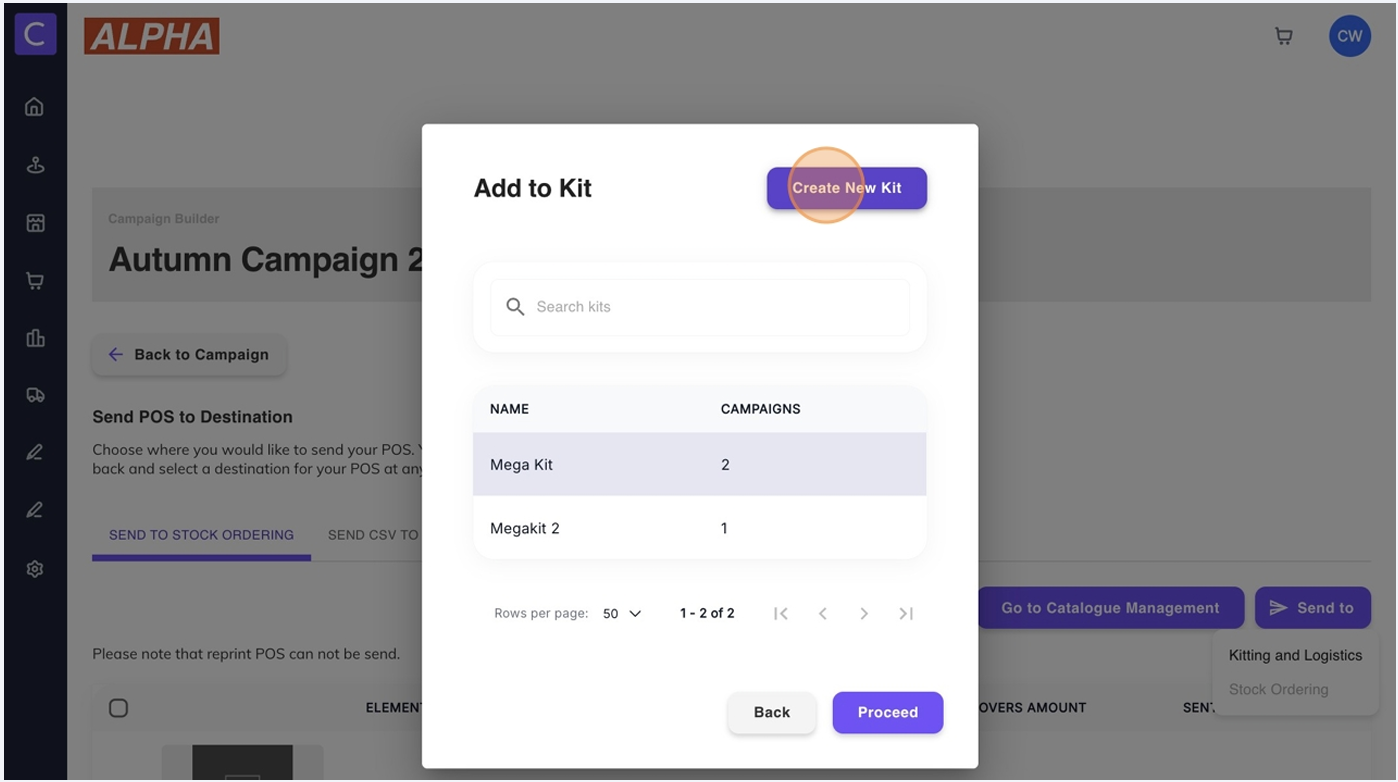
- Click "Send to"
- Click "Kitting and Logistics"
- Click "Create New Kit" (new step)
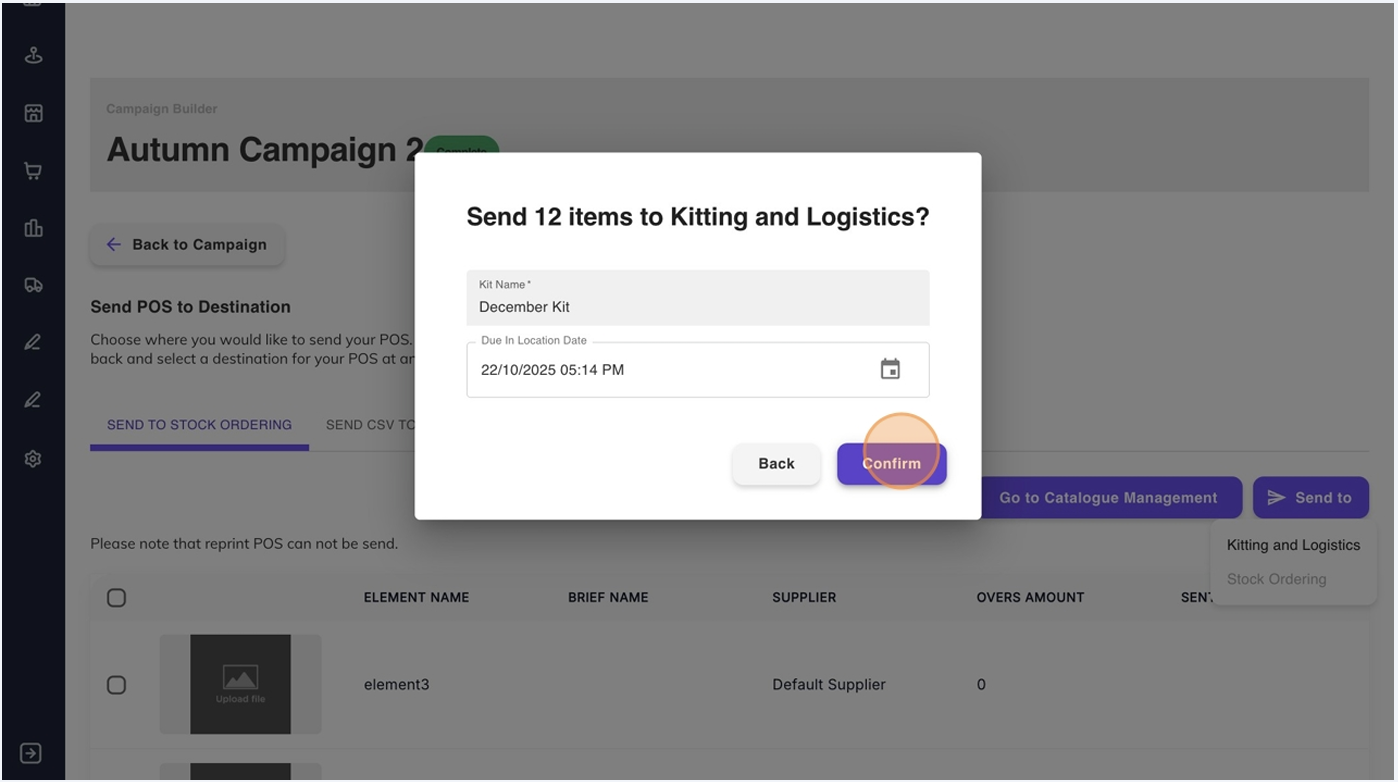
- Give your kit a new name, Set a "Due in location Date", press "Confirm"
- Click "Go to Kitting"
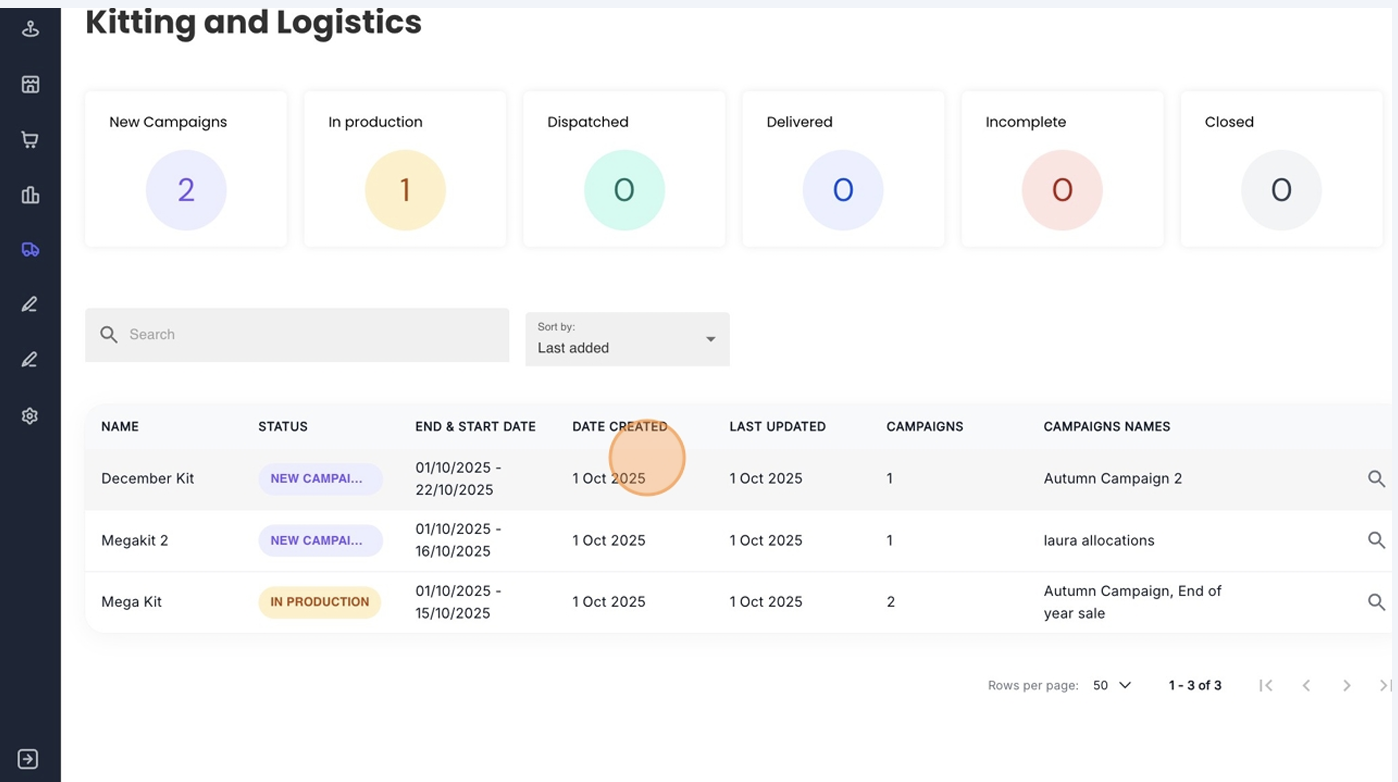
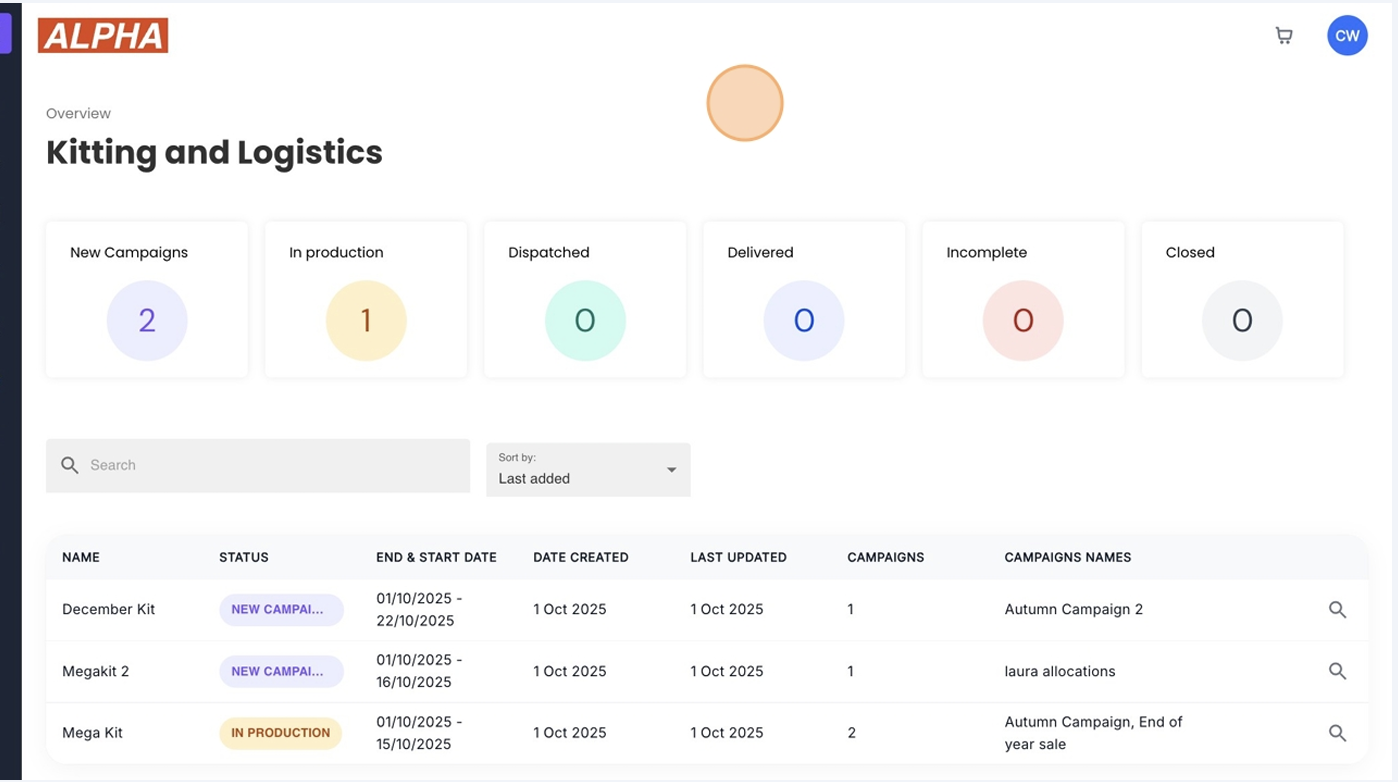
- You'll be taken to the Kitting and Logistics Dashboard
- You will now have a view of all kits in table format. The table format nows shows a breakdown of:
- Campaign Status
- End Date / Start Date
- Date Created
- Last Updated
- Total Campaigns
- Campaigns Names
- Go to Campaigns > Campaign Builder
- Select your draft campaign
- Once your Campaign is finalised and ready you can now send to Kitting and Logistics
- Select the Confirmation tab, press Complete Campaign and Confirm
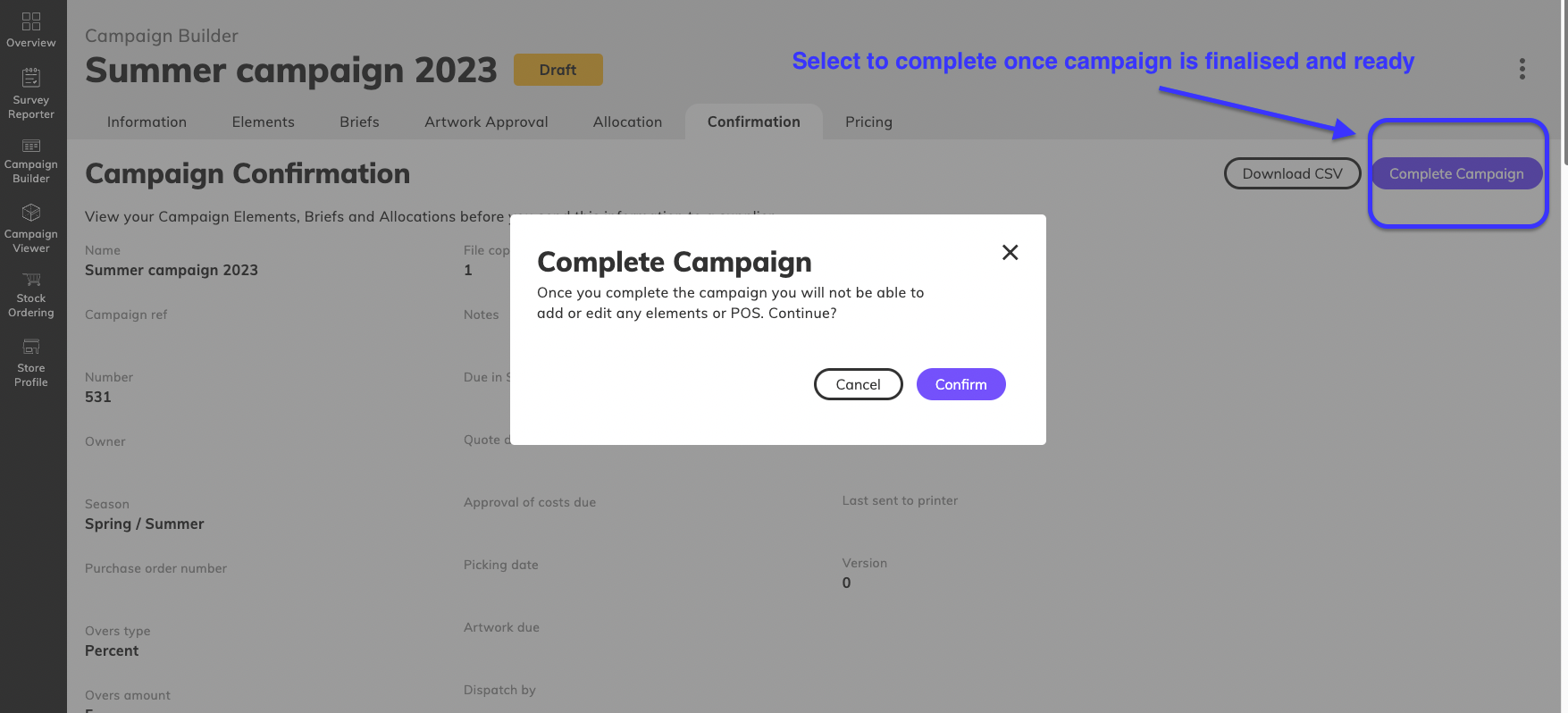
5. You campaign status will change from Draft to Complete
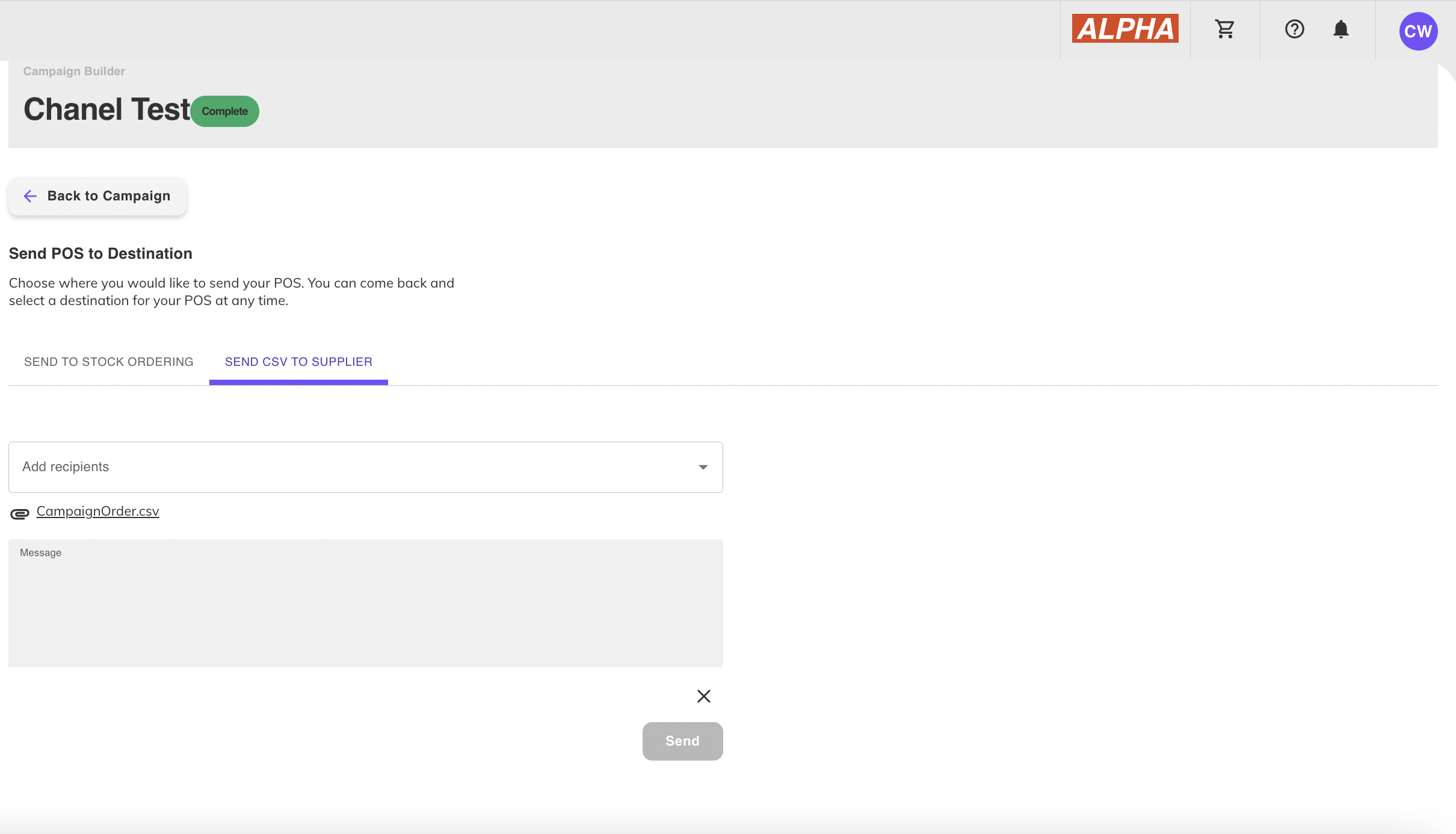
6. Select Send to Destination

7. Select the Send CSV to Supplier tab
8. Add suppliers email and a message to the supplier, then press send
8. Go back to Send to Stock Ordering tab
9. Select all elements, press Send to, and press Kitting and Logistics
10. After pressing send, a box will pop-up to set a'Due in Store Date'.
(This date will be pre-populated if already set in the beginning stage of building your campaign)
11. Once all set, you'll be taken to the 'Kitting and Logistics' section
To learn more about Creating Campaigns in Campaign Builder follow this link Campaign Builder
Was this article helpful?
That’s Great!
Thank you for your feedback
Sorry! We couldn't be helpful
Thank you for your feedback
Feedback sent
We appreciate your effort and will try to fix the article