This guide explains how to apply a saved notification template to a campaign and set the trigger date for the first event.
Admin role: Full access
Superuser: Reduced access
Basic User: View only
Apply a Notification Template to a Campaign
Navigate to Campaign Builder.
Create a new campaign or open an existing campaign.
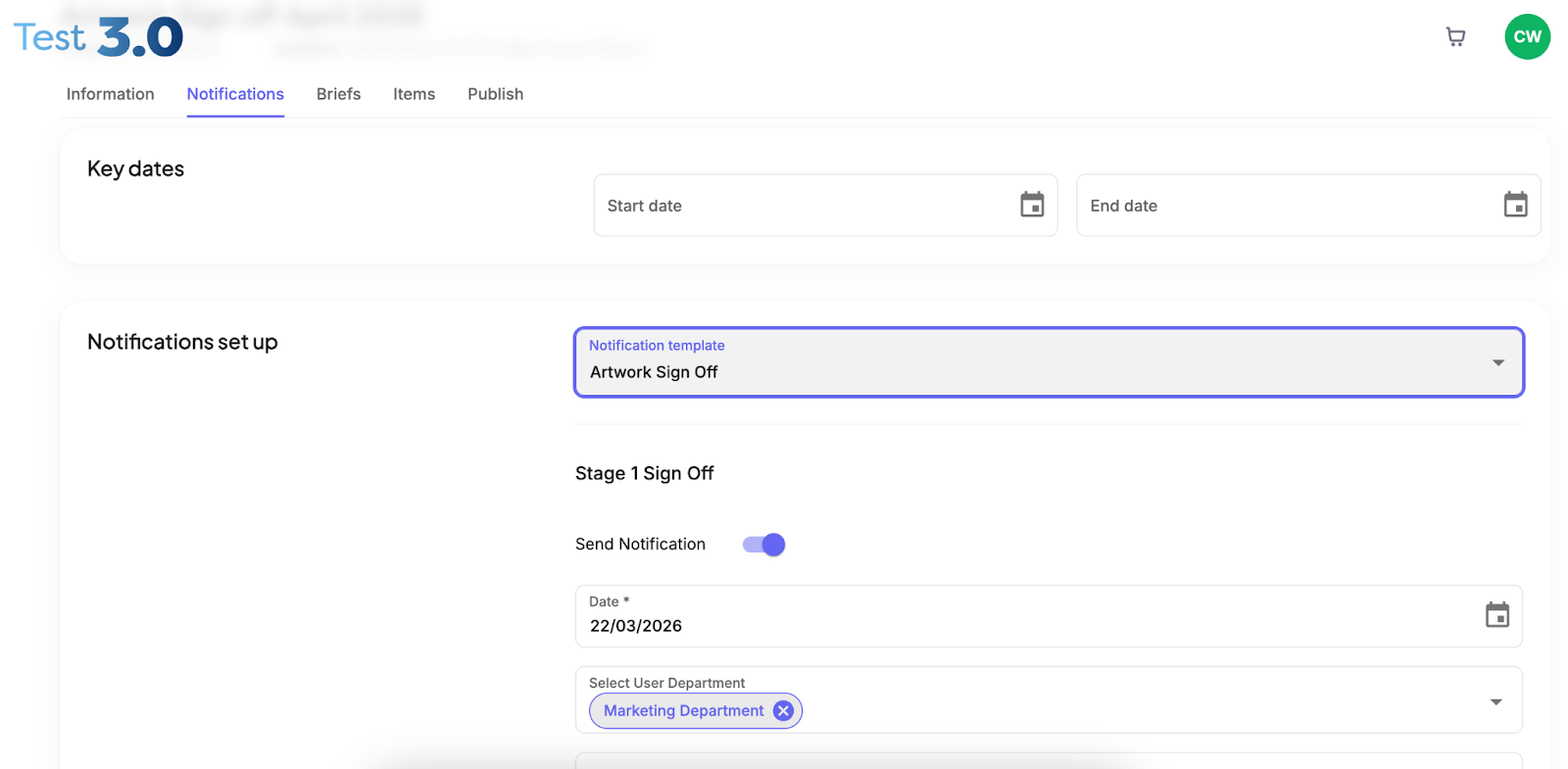
Open the Notifications tab.
Locate the Notification Template dropdown.
Select the required template.
In the first event stage, select the Date field.
Choose the trigger date from the calendar.
Review the remaining stages in the template.
Confirm the User Department, Subject Line, and notification details are correct.
If required, turn Attach campaign summary report on.
Select Save or Update Campaign.
A confirmation message will appear to show the campaign has been updated successfully.
Notes
Setting Date: Once the first event date is set, any later stages using Working days after Event will calculate automatically.
Sequential stages depend on the event logic set in the template.
Notification templates can be reused across multiple campaigns.
Was this article helpful?
That’s Great!
Thank you for your feedback
Sorry! We couldn't be helpful
Thank you for your feedback
Feedback sent
We appreciate your effort and will try to fix the article