Admin: Full Access
Super User: Edit Only
Basic User: Advance Search & Booking
1. Navigate to Inventory Finder by clicking campaigns and selecting Inventory Finder
2. Set the Trading period you want to filter by clicking add Trading Periods
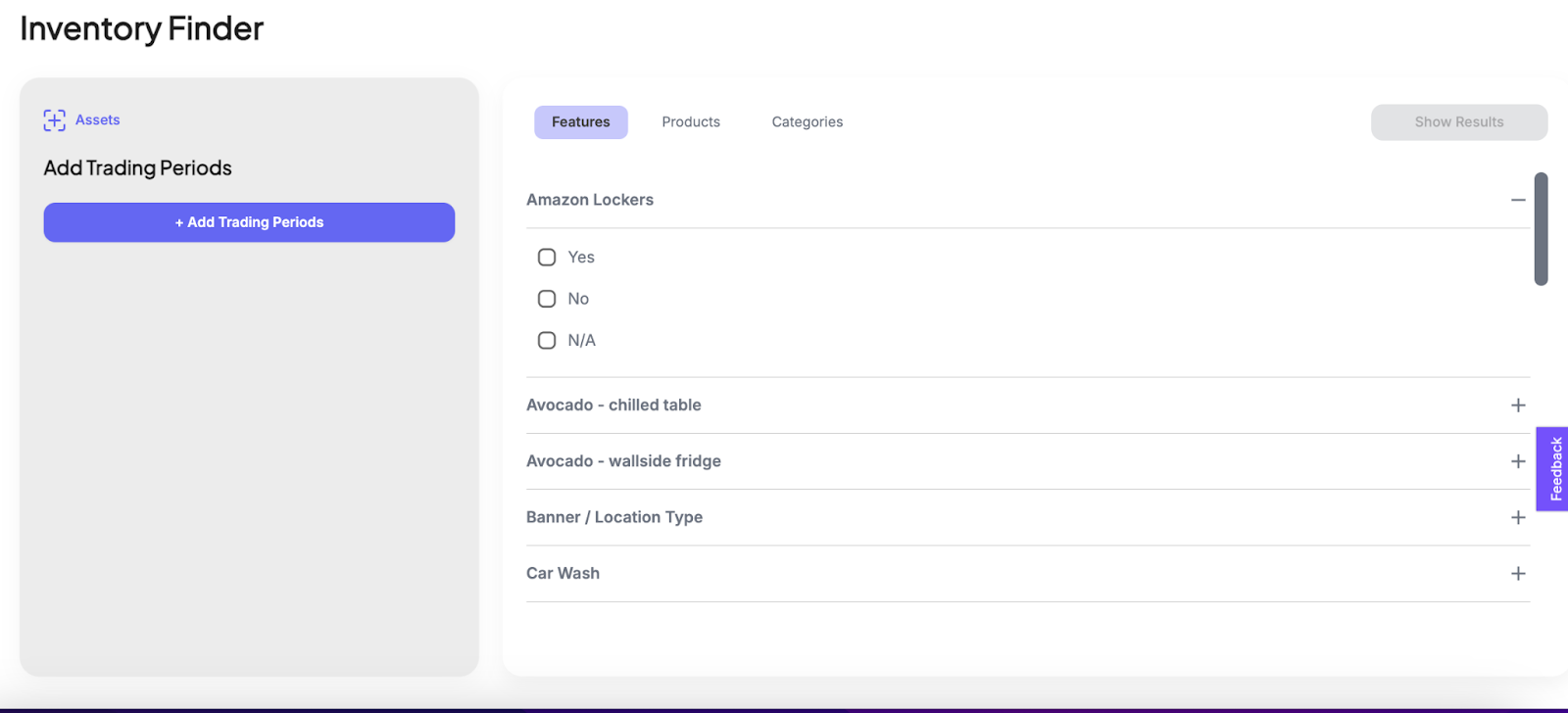
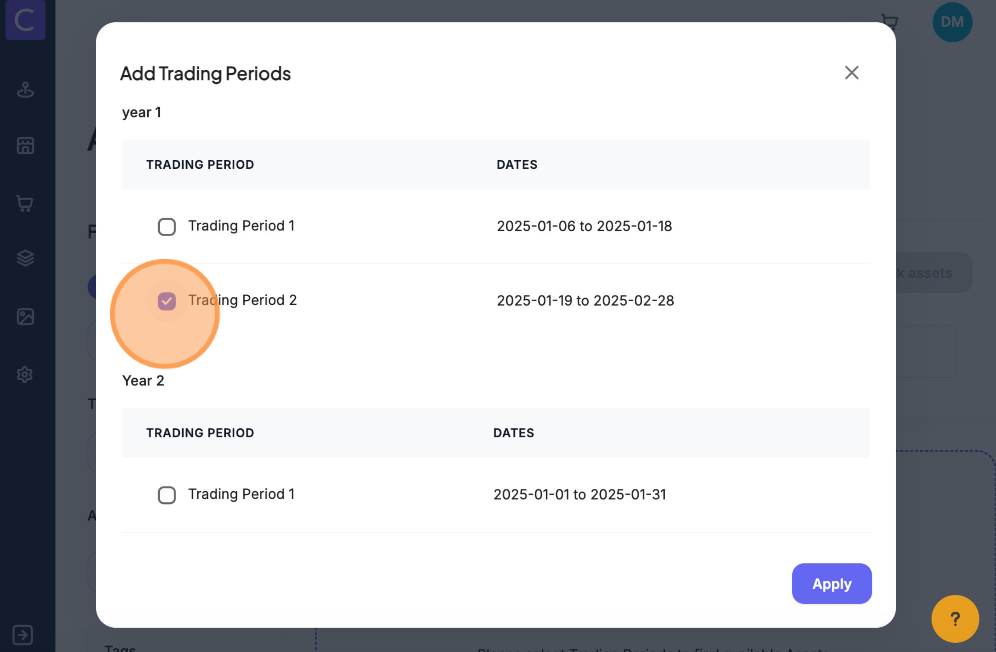
3. Select your trading periods and click apply
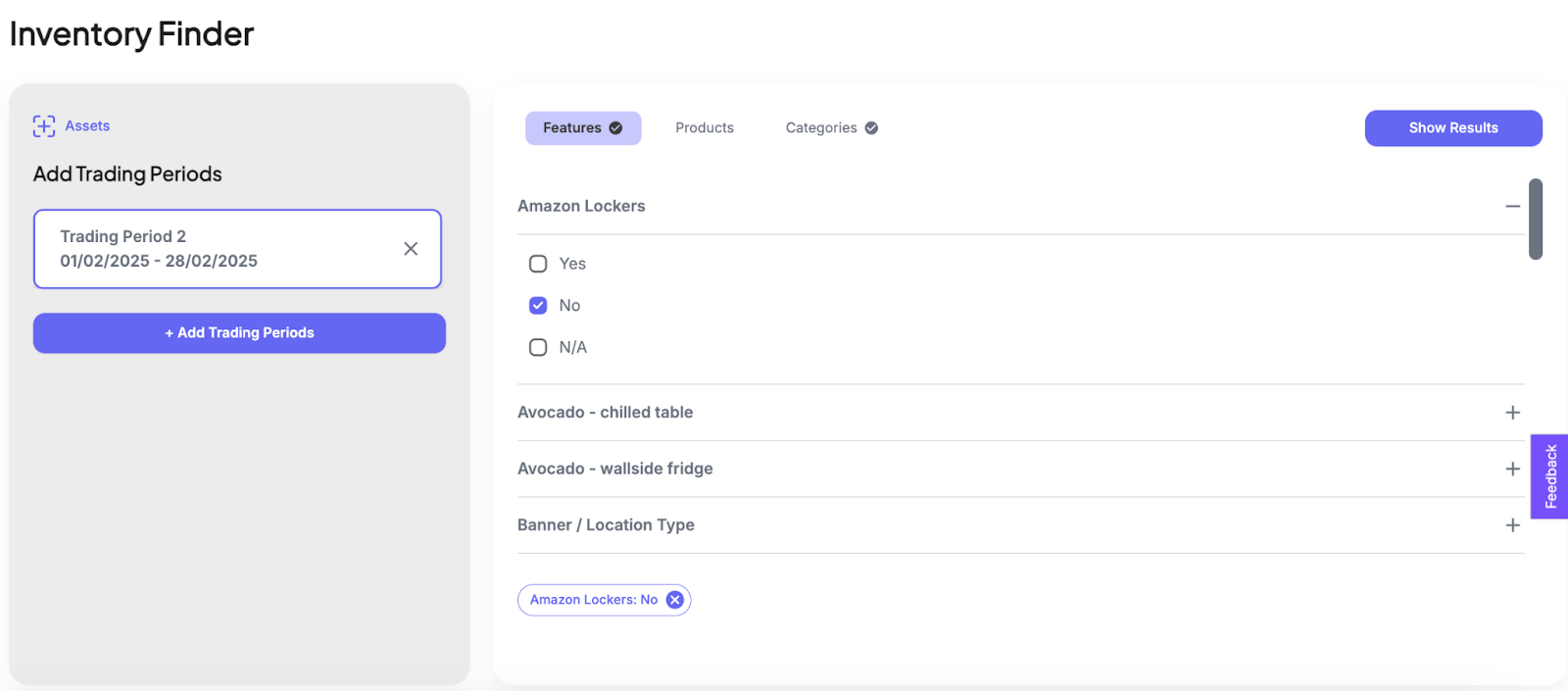
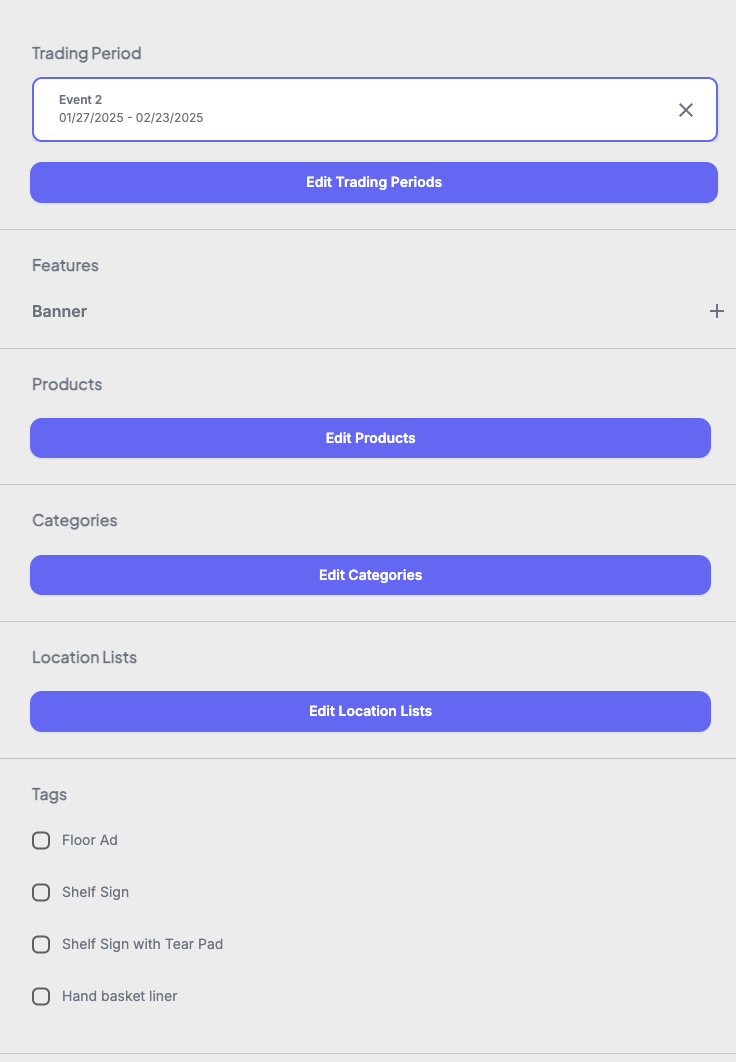
4. Users can then apply further filters before running the search user can filter by feature, products or categories where filters have been selected there is an indicator on their respective tabs
5. To apply a category filter click your chosen category and any sub-categories and select your filter by clicking the checkbox and click apply - note category trees are bespoke to individual retailers
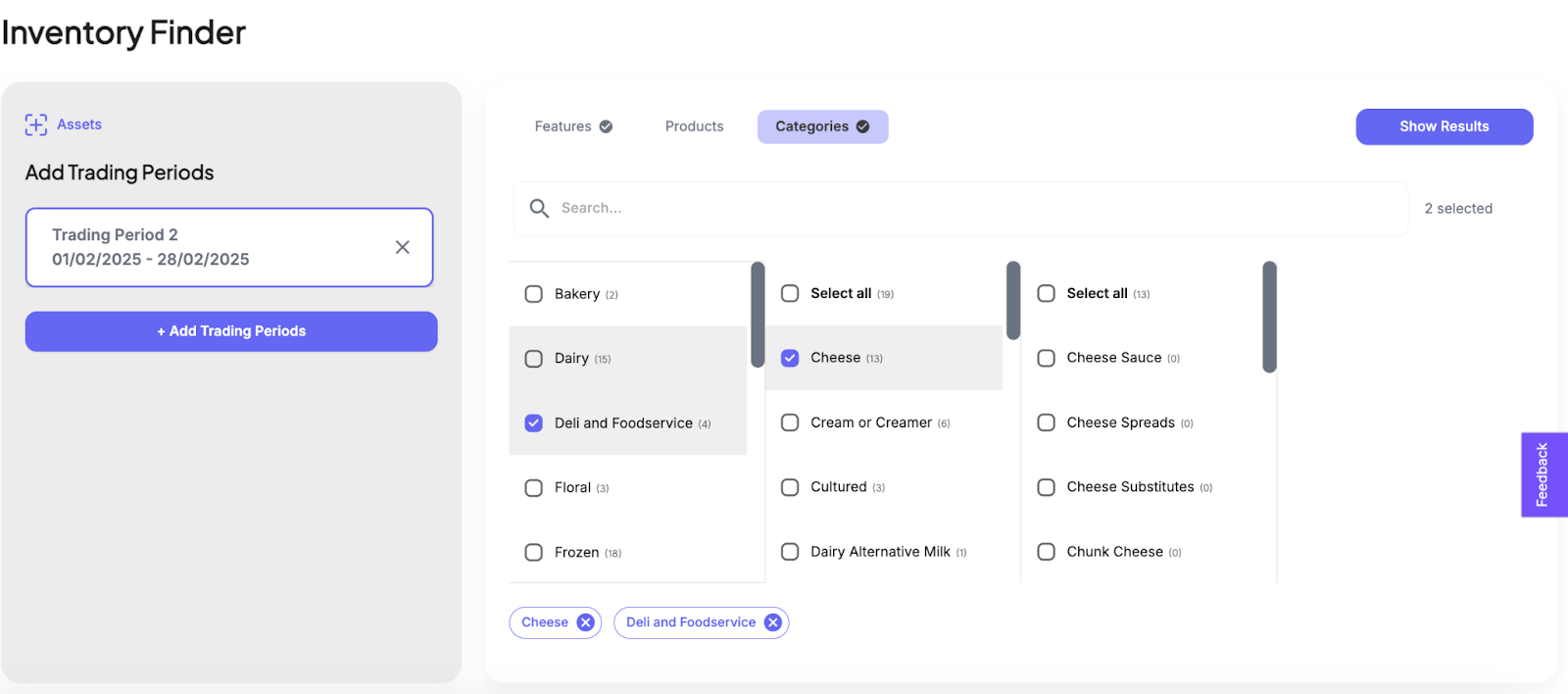
6. To run the search simply click show results and the assets that meet the criteria will surface
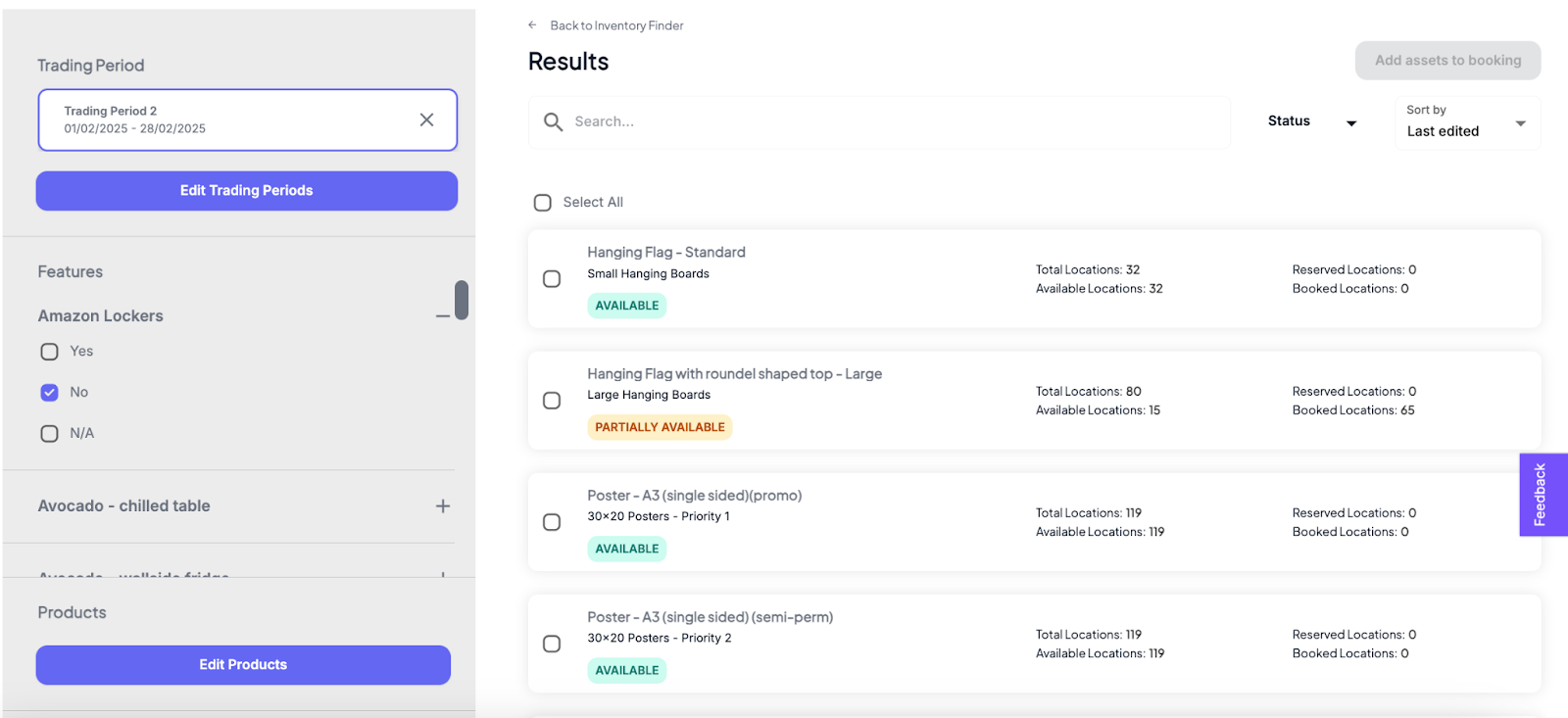
7. Filters can then be further refined as needed using the various filters on the left hand side of the page these can be customised further in asset custom fields
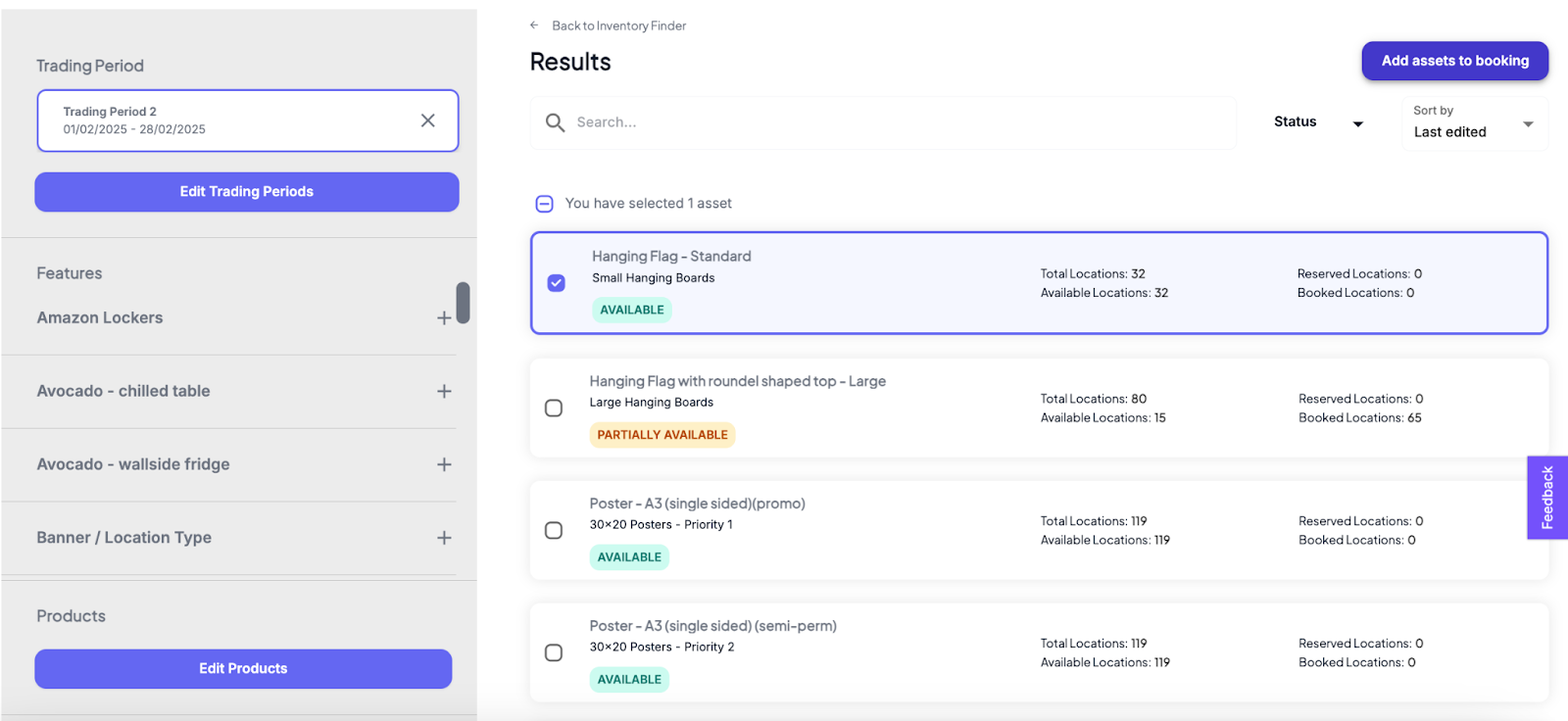
8. Select the assets you want to book by clicking the checkbox and click Add assets to booking
Was this article helpful?
That’s Great!
Thank you for your feedback
Sorry! We couldn't be helpful
Thank you for your feedback
Feedback sent
We appreciate your effort and will try to fix the article