How to upload Artwork Images to artwork briefs
Admin: Full Access
Super User: Edit Only
Basic User: View Only
Open the brief by clicking its name.
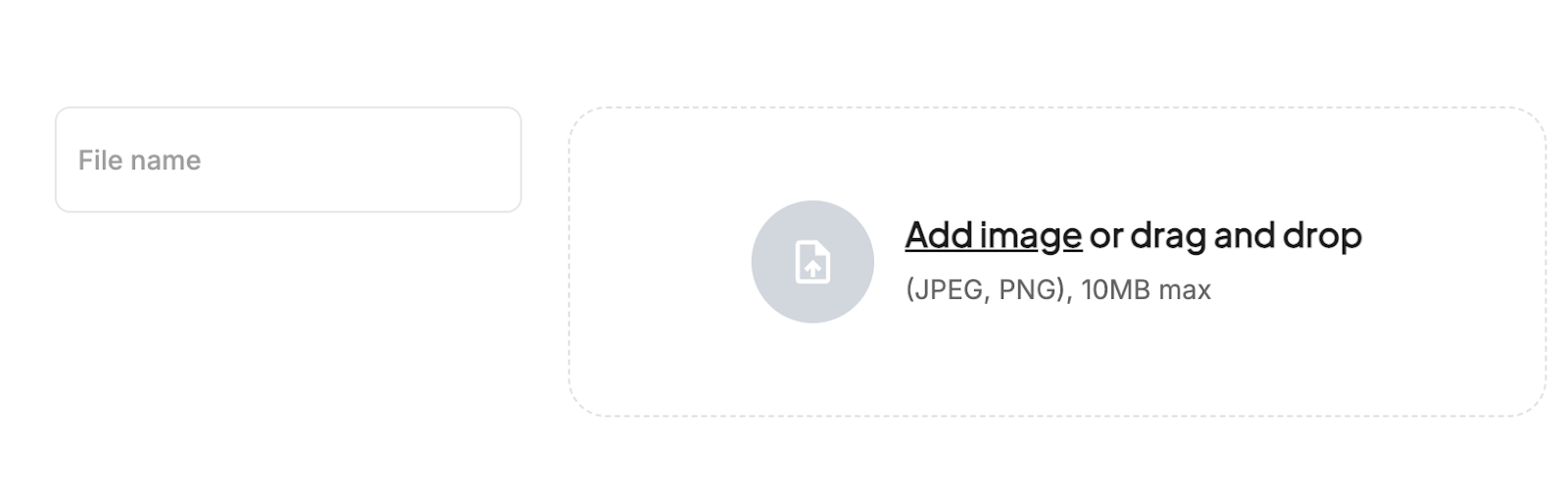
Scroll to the Image section at the top.
Drag and drop your image, or click Add image or drag and drop to select a file (JPEG, PNG, max 10 MB).
Scroll down and select Save.
Upload Attachments
Open the brief by clicking its name.
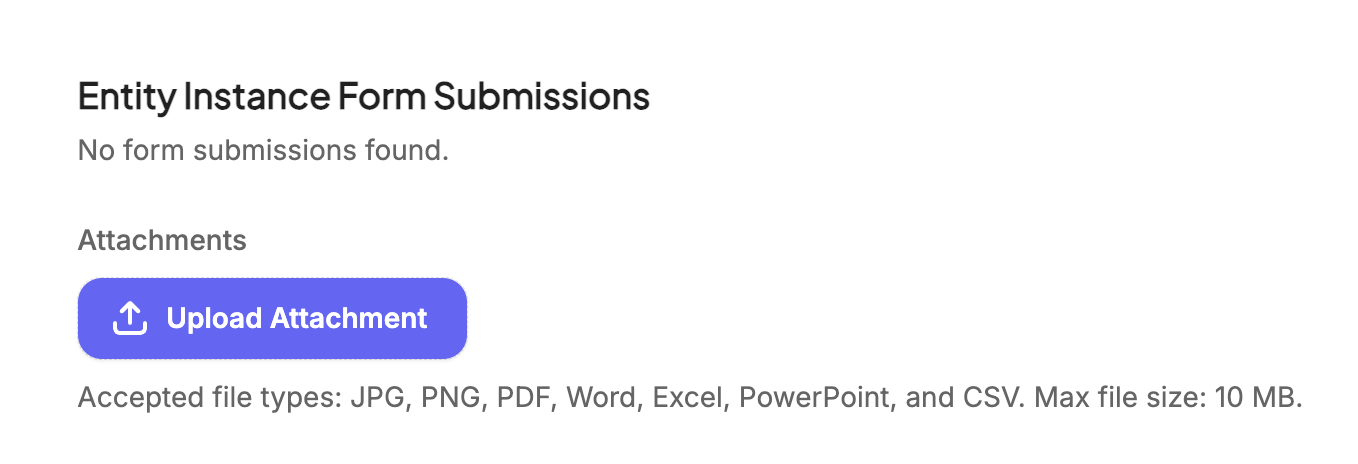
Scroll to the Attachments section.
Click Upload Attachment.
Select the file(s) to attach (PDF, Word, Excel, CSV, max 10 MB per file).
Scroll down and select Save.
Was this article helpful?
That’s Great!
Thank you for your feedback
Sorry! We couldn't be helpful
Thank you for your feedback
Feedback sent
We appreciate your effort and will try to fix the article