When you open an active job, you will see a list of assigned items.
Click the Action menu (3 dots) next to any specific item
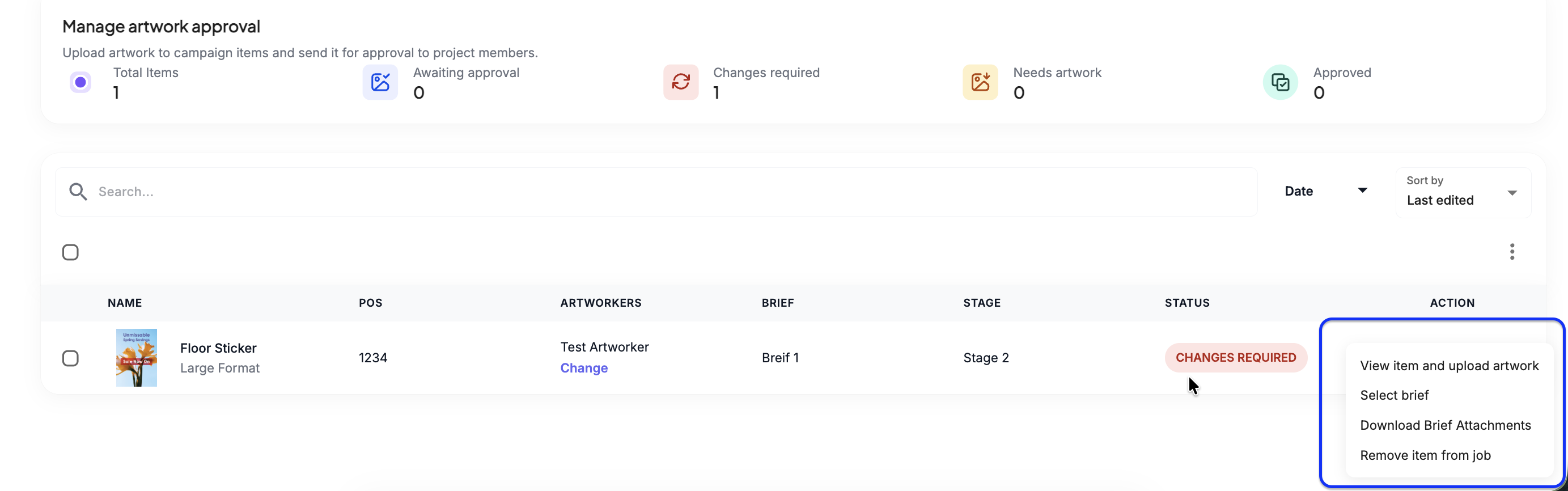 View Item & Upload Artwork: Opens the review screen to check item metadata or upload the creative file.
Select Brief / Assign New Brief: Links the item to an existing campaign brief. You can swap or assign a new brief at any time.
Download Brief Attachments: Instantly downloads any reference images, fonts, or copy documents attached to that specific item's brief.
Remove Item from Job: Extracts the item from the current job grouping if it needs to be rescheduled or re-assigned.
Rich Media QA Checklist
Format Validation:
Verify that your uploaded asset matches an accepted file type extension (JPG, PNG, GIF, PDF, MP3, M4A, MP4, MPEG, MOV) under the 10 MB limit threshold.
Confirm the media control deck renders perfectly when loading an MP4 or MP3 file format.
Note: Item modifications, such as changing briefs, downloading brief attachments, or removing items from a job, can only be done per individual item. Bulk actions are not supported inside the active job list view.
Was this article helpful?
That’s Great!
Thank you for your feedback
Sorry! We couldn't be helpful
Thank you for your feedback
Feedback sent
We appreciate your effort and will try to fix the article