Before launching an artwork job, you must define the workflow path the item needs to follow. Admin users can assign approval templates at three distinct layers depending on how granular the process needs to be:
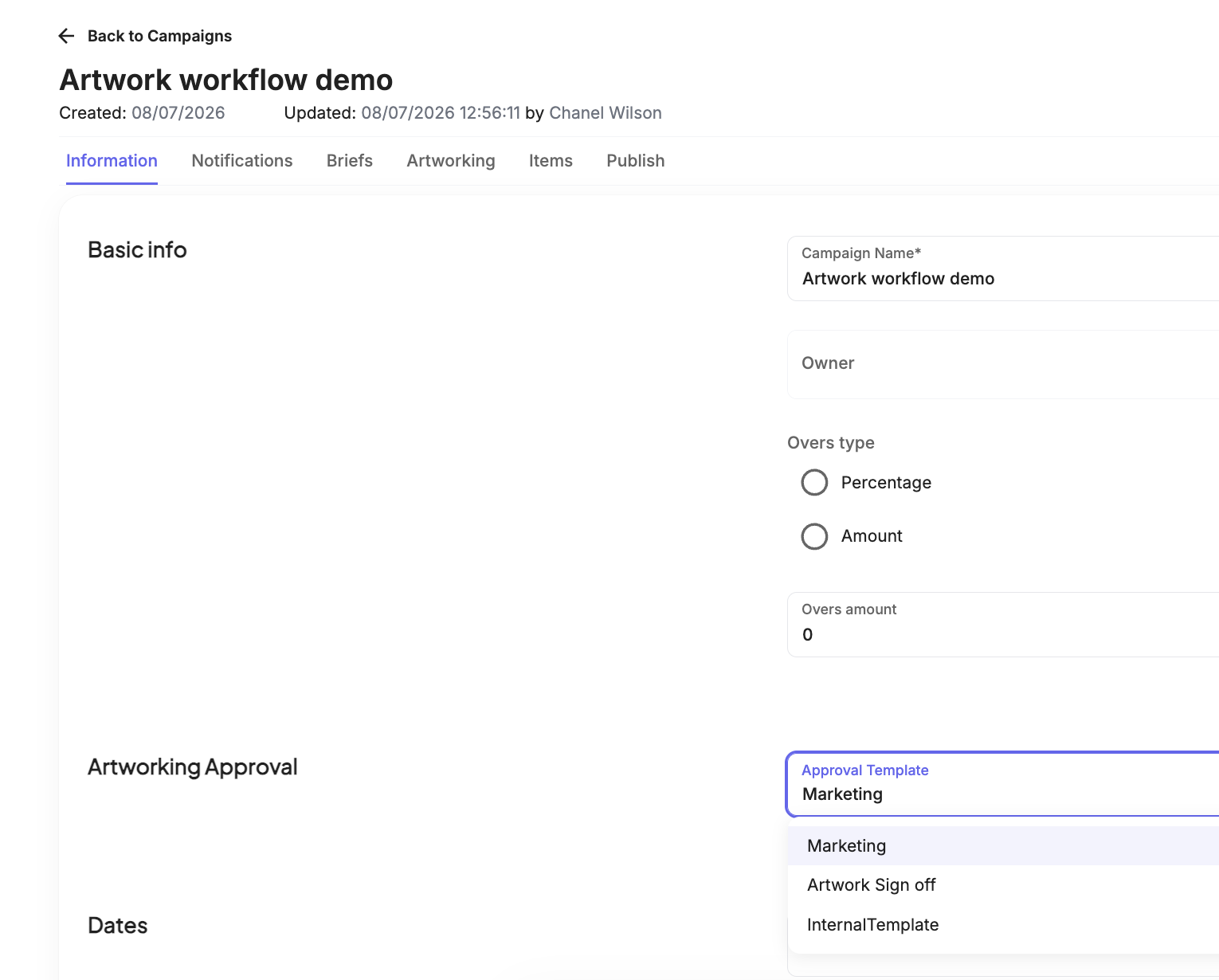
Campaign Level: Set a default template when editing the campaign’s Information tab. Under the Artworking Approval section, select an predefined workflow (e.g., Marketing, Artwork Sign Off) from the Approval Template dropdown menu.
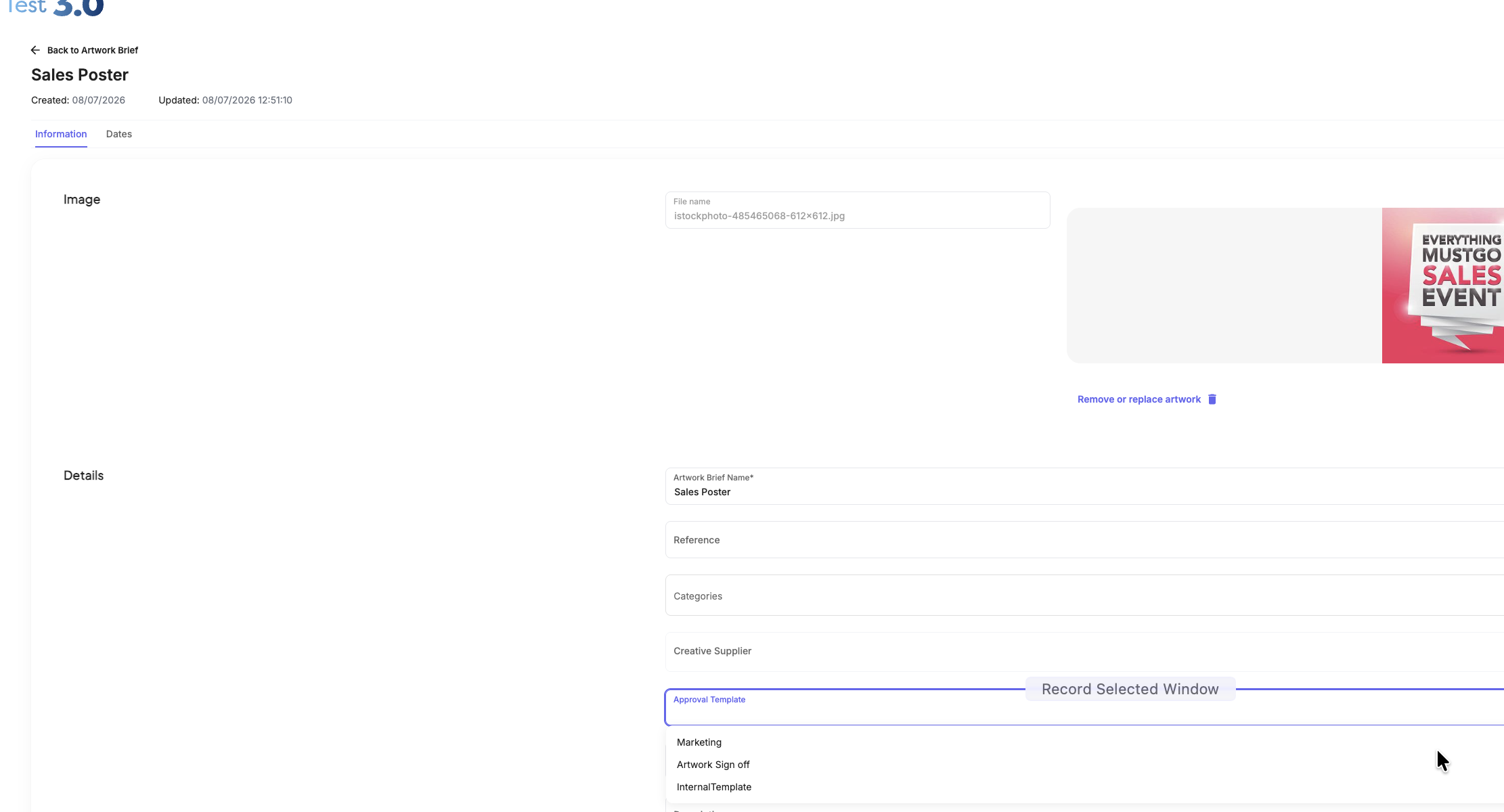
- Briefs Level: On the briefs tab select a brief > information tab and select Approval Template dropdown to assign specific approval paths to individual creative briefs within the campaign.
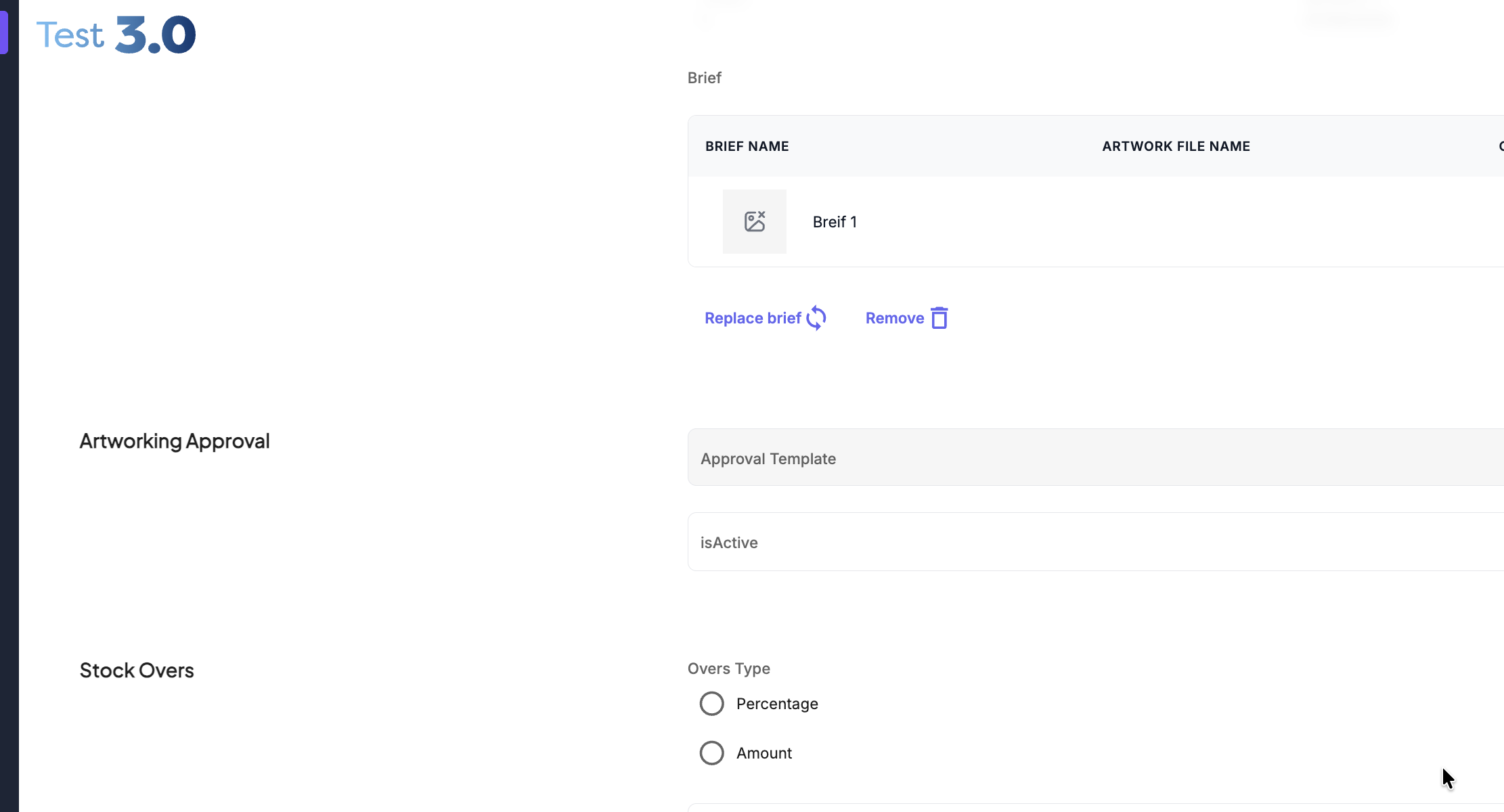
- Items Level: On the items tab start to Edit Items and select Approval Template dropdown to assign specific approval paths to individual creative briefs within the campaign.
Was this article helpful?
That’s Great!
Thank you for your feedback
Sorry! We couldn't be helpful
Thank you for your feedback
Feedback sent
We appreciate your effort and will try to fix the article