Launching the Approval Process
An item's workflow remains dormant under a NEEDS ARTWORK status. To trigger and start the active workflow, upload the final artwork image directly into the individual item
Once uploaded, the platform automatically progresses the item to Stage 1 and shifts its status to AWAITING APPROVAL. This behaviour occurs strictly on a per-item basis.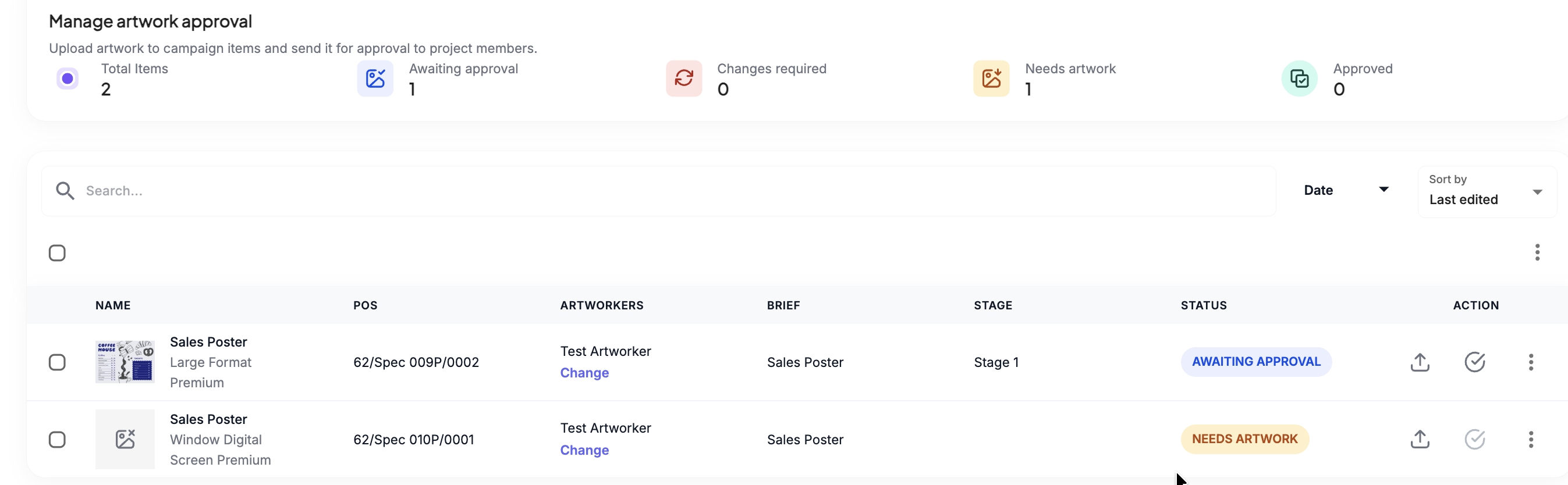
Reviewing and Deciding
Once the workflow is in AWAITING APPROVAL, any project member included in that workflow stage can actively participate:
Start by selecting View Artwork and Proof. This will open the proof.
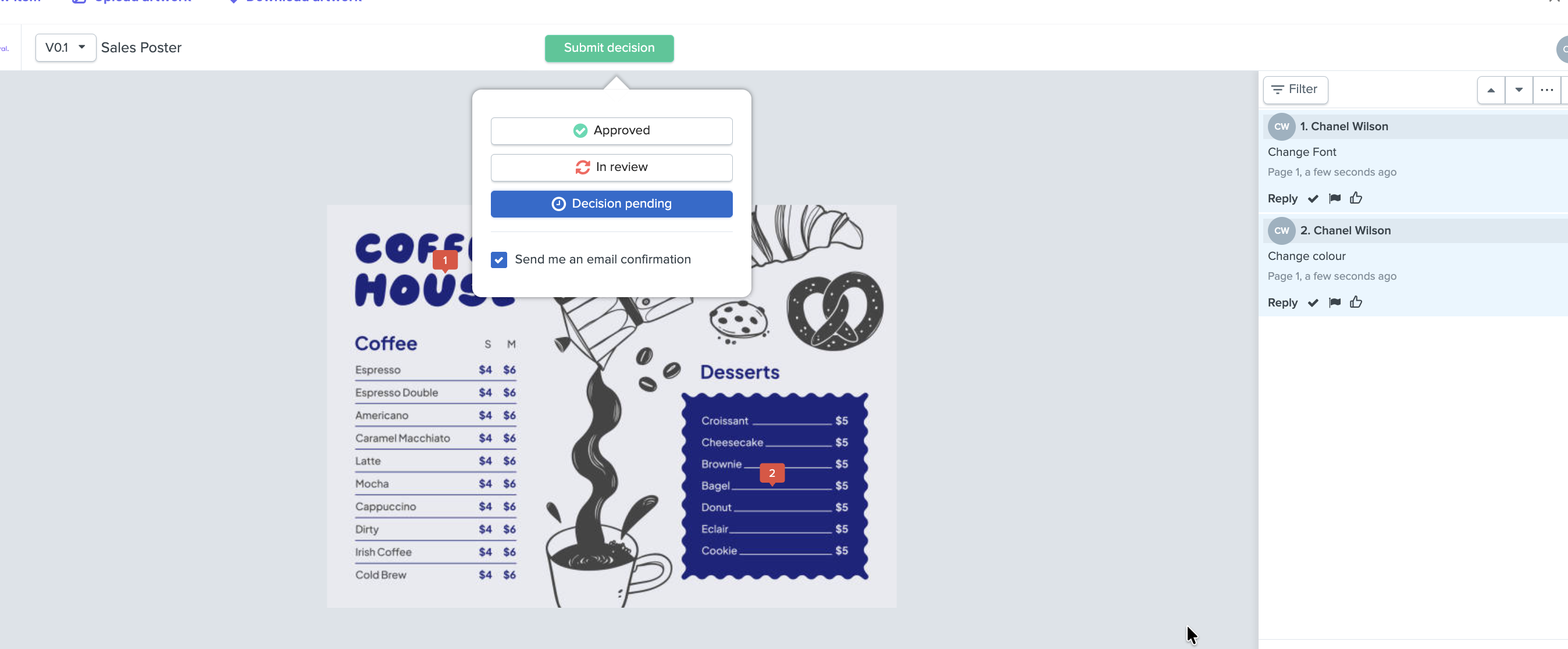
Leave Comments & Annotations: Open the artwork view, use the markup tools to point out specific adjustments, type out feedback, and click Add comment.
Submit Decisions: Click the Submit decision button at the top of the asset viewer. Reviewers can select Approved to move the item forward, or select In Review (which flags that changes are required) to hold the asset.
Was this article helpful?
That’s Great!
Thank you for your feedback
Sorry! We couldn't be helpful
Thank you for your feedback
Feedback sent
We appreciate your effort and will try to fix the article