Bulk uploads allow you to update Feature values and Location assignments at scale using a downloadable spreadsheet.
Admin: Full Access
Super User: Edit Only
Basic User: View Only
Group Manager: View Only
Download Feature Data
Navigate to Features.
Select More actions (top right).
Click Download Features XLSX.
Prepare and Upload Updates
Open the downloaded spreadsheet.
Locate the relevant Feature columns (for example, CLSF/1 for Store Size).
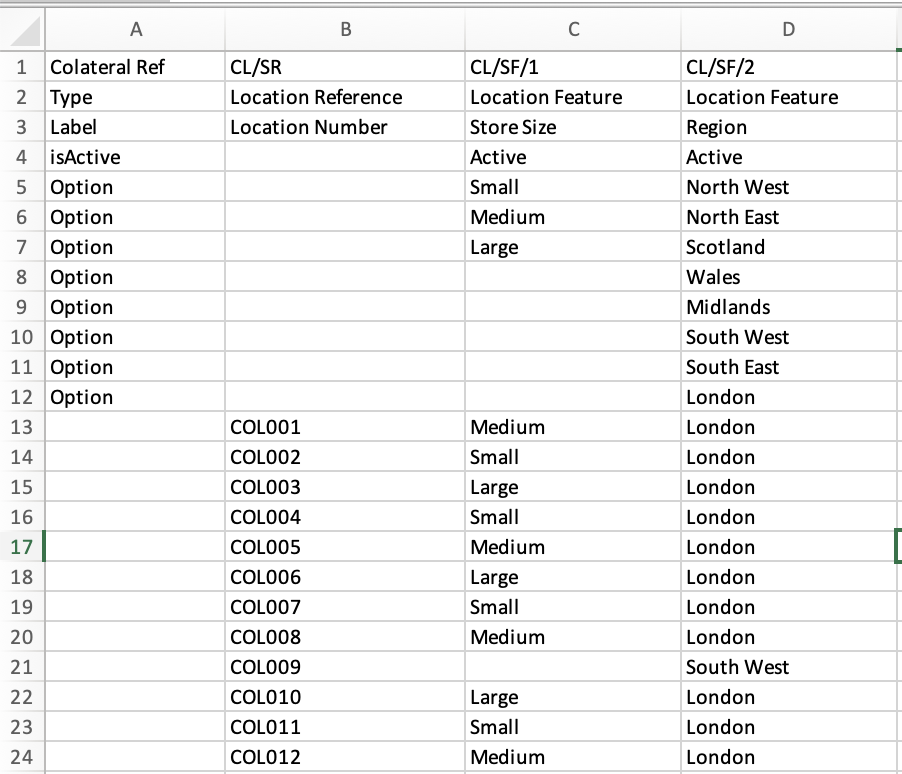
Update numeric or text values for each Location Option
Return to Features.
Select More actions > Upload Features XLSX.
Choose your updated file.
Wait for processing to complete.
Outcome
A green banner confirms “You have successfully updated X features”, and changes are applied across Locations.
Download Feature Data
Navigate to Features.
Select More actions (top right).
Click Download Features XLSX.
Prepare and Upload Updates
Open the downloaded spreadsheet.
Locate the relevant Feature columns (for example, CLSF/1 for Store Size).
Update numeric or text values for each Location reference.
Return to Features.
Select More actions > Upload Features XLSX.
Choose your updated file.
Wait for processing to complete.
Outcome
A green banner confirms “You have successfully updated X features”, and changes are applied across Locations.
Was this article helpful?
That’s Great!
Thank you for your feedback
Sorry! We couldn't be helpful
Thank you for your feedback
Feedback sent
We appreciate your effort and will try to fix the article