This bulk action is used to define how many units of each Element (material or spec) are required for each Asset.
For example, a Window – Large Format Asset may require 3 × A4 Display Elements.
Admin: Full Access
Super User: Edit Only
Basic User: View Only
Download the Element Quantity list
Navigate to the Admin > Assets
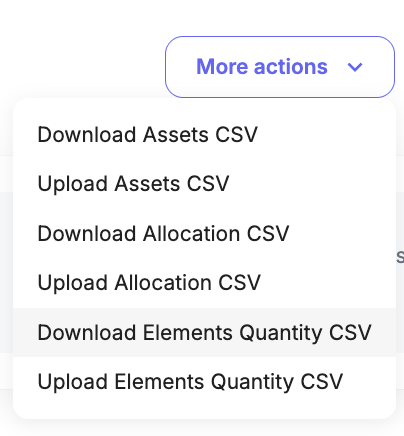
Select the More actions dropdown button (top right).
Select Download Elements Quantity CSV.The system will generate and download the file
Open the file spreadsheet
Row 1 represents Elements
Column A represents Assets (fixtures)
Each cell represents the required quantity of material or spec needed for that asset
Populate the required quantities in the relevant cells.

Upload the Updated CSV
Return to the Assets page.
Select the More actions dropdown button.
Select Upload Elements Quantity CSV.
The system will prompt you to select the file. Browse files and upload your completed and saved Asset Element Qty file.
A confirmation pop-up will notify you when the import is successful.
Was this article helpful?
That’s Great!
Thank you for your feedback
Sorry! We couldn't be helpful
Thank you for your feedback
Feedback sent
We appreciate your effort and will try to fix the article