Use filters and advanced search to quickly find, organise, and export Locations from the Location Profiler.
Admin: Full Access
Super User: Edit Only
Basic User: View Only
Group Manager: View & upload images & answer surveys
Use Quick Filters
Navigate to Location Profiler.
Use the filters at the top of the Locations table to refine results:
Status: View Open or Closed locations.
Type: Filter by location type (e.g. Head Office, Main Store).
Region: Filter locations by geographic region.
Sort by: Order results by Last added, Last edited, or Alphabetical (A–Z / Z–A).
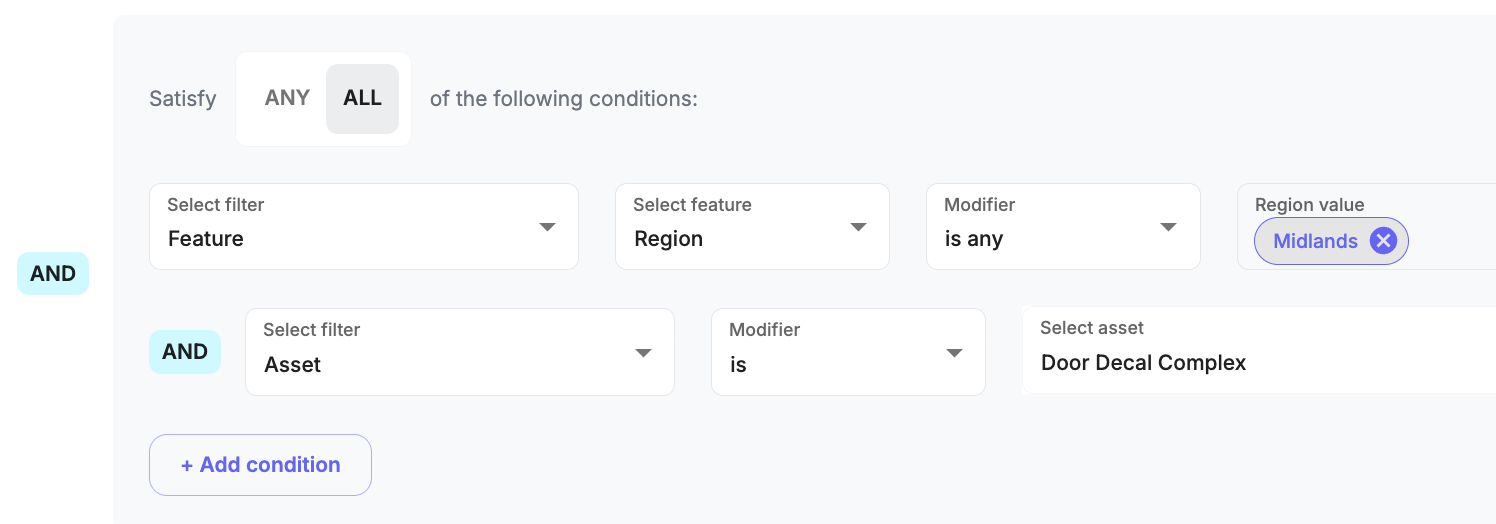
Use Advanced Location Search
Select Advanced search.
Choose the condition logic:
ANY to match at least one condition.
ALL to match every condition.
Select filter criteria such as:
Location
Location List
Feature (e.g. Store Size = Medium)
Asset (e.g. Door Decal Complex)
Product Range
If required Select + Add condition to combine multiple filters.
Apply the search to view matching Locations.
Was this article helpful?
That’s Great!
Thank you for your feedback
Sorry! We couldn't be helpful
Thank you for your feedback
Feedback sent
We appreciate your effort and will try to fix the article