How to create, update, and manage Locations using the Location Profiler.
Admin: Full Access
Super User: Edit Only
Basic User: View Only
Group Manager: View & upload images & answer surveys
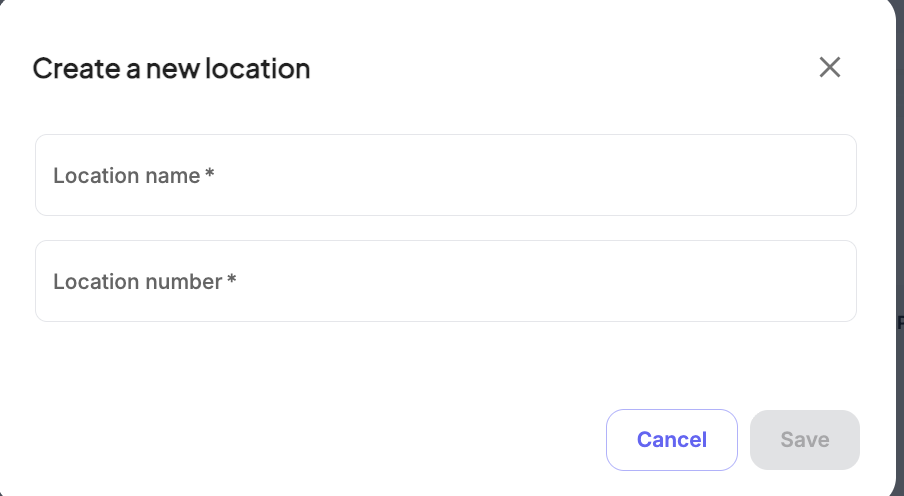
Create a New Location
Navigate to Location Profiler.
Select + Create.
Enter the Location Name and Location Number.
Select Save to create the location profile.
Edit Location Details
Locate the Location in the list and click its name to open the profile.
Update the required details, including:
Core information (Nickname, Currency, Language, Internal Comments)
Address details (Address, State/Province, Country)
Organization details (Type, Brand/Company, Division, Subdivision)
Technical details (Cost Codes, Tax Rates, Reference Numbers)
Select Save Changes to apply updates.
Manage Location Status (Open / Close)
Locations are set to Open by default when created.
Open the Location profile.
Navigate to the Status section.
To permanently close a location, select Set permanent closure date.
Choose the closure date and select Save.
The Location status updates immediately to Closed.
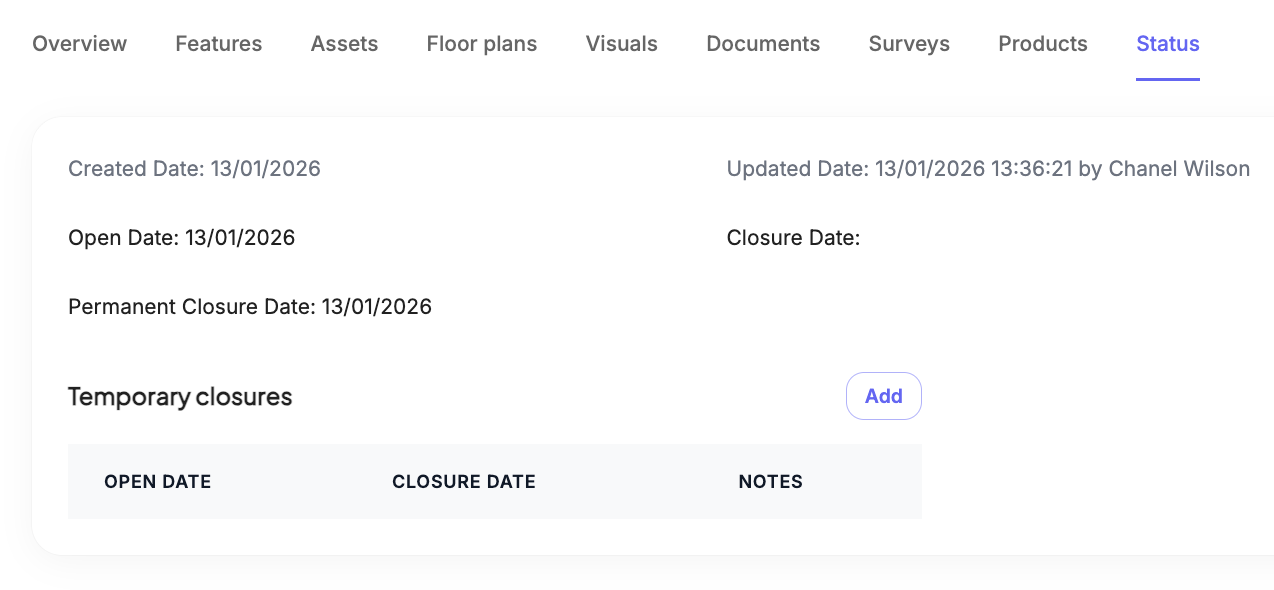
Closed locations are excluded from active selection but retained for reporting and historical data.
View Archived (Closed) Locations
Navigate to the Location Profiler list page.
Use the Status filter.
Select Closed.
The list updates to show only archived locations.
Was this article helpful?
That’s Great!
Thank you for your feedback
Sorry! We couldn't be helpful
Thank you for your feedback
Feedback sent
We appreciate your effort and will try to fix the article