How to Download and Bulk Upload Elements
This method allows you to manage multiple Elements at once by exporting your current list, adding new items, or updating existing specifications in a single upload via CSV.
Admin: Full Access
Super User: Edit Only
Basic User: View Only
Group Manager: View Only
Download Elements (CSV)
Navigate to the Elements page.
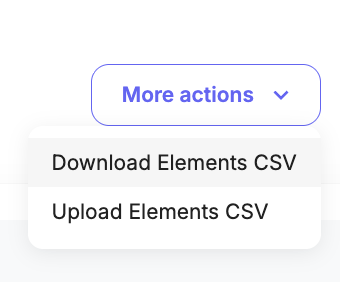
Select the More actions dropdown (top right).
Click Download Elements CSV.
What’s Included in the Export
All active Elements
Fields such as Name, Product Code, Size, Supplier, and other specifications
Upload Elements (CSV)
Create a new Element on the spreadsheet by adding a new row with required fields (Name, Product Code, Supplier).
Amend existing Elements if required
Save spreadsheet
On the Elements page, select the More actions dropdown (top right).
Upload Elements CSV
Review the sample data table to ensure the Header Row is correct, then click Continue.
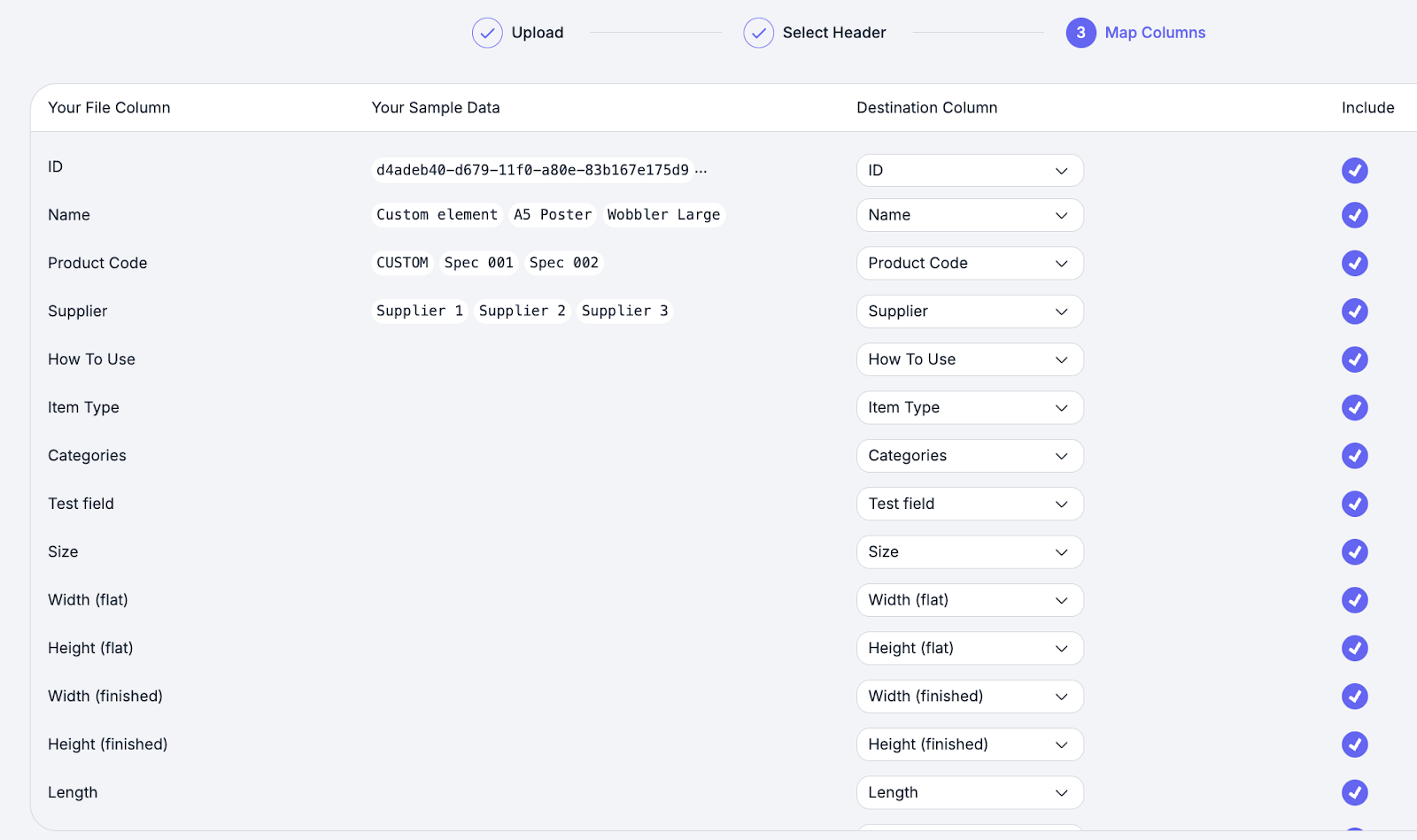
Map your CSV columns to system fields (e.g., match "Supplier" to "Supplier*").
Leave any columns blank if you do not want to include
Click Submit to start the import.
Wait for the Success pop-up to appear, then select Close.
Was this article helpful?
That’s Great!
Thank you for your feedback
Sorry! We couldn't be helpful
Thank you for your feedback
Feedback sent
We appreciate your effort and will try to fix the article