Campaign - Creating Allocations
Allocations define which locations receive each item.
Admin: Full access
Super User: Edit data only
Create a New Allocation
Open the Items tab within a campaign.
Select the three dots next to an item and click Create Allocation.
In the display box select Edit or Create Rule
Name your allocation (if required)
Allocation names are auto generated with the same name from the Campaign Name
Choose an allocation type:
Assets
Features
Location Lists
Locations
You can add multiple variables to an allocation.
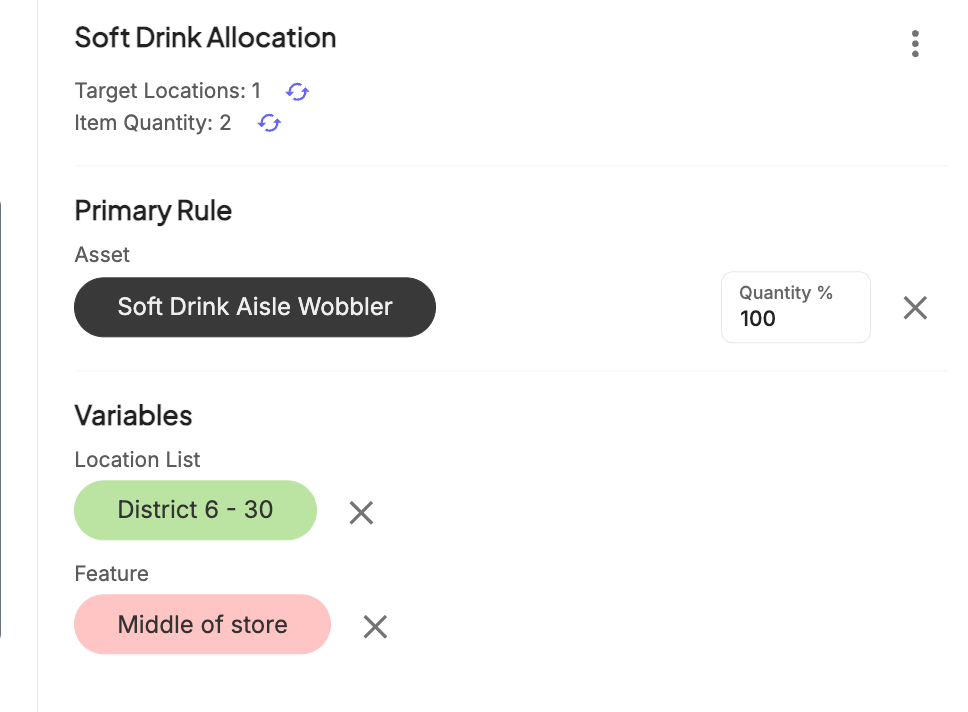
Allocation variables colour codes
GREEN = to include
RED = to exclude
Lets breakdown this allocation example:
Allocate to Asset named “Soft Drink Aisle Wobbler” (This means all stores assigned to this asset will be assigned)
Allocate to Location List named “District 6 - 30”
DO NOT allocate to Feature “Middle of store” (This means all stores assigned to this feature will NOT be allocated
Was this article helpful?
That’s Great!
Thank you for your feedback
Sorry! We couldn't be helpful
Thank you for your feedback
Feedback sent
We appreciate your effort and will try to fix the article