Admin: Full Access
Super User: Edit Only
Basic User: Create & Manage
1. Navigate to the Booking Forms page by clicking Campaigns and selecting Booking Management.
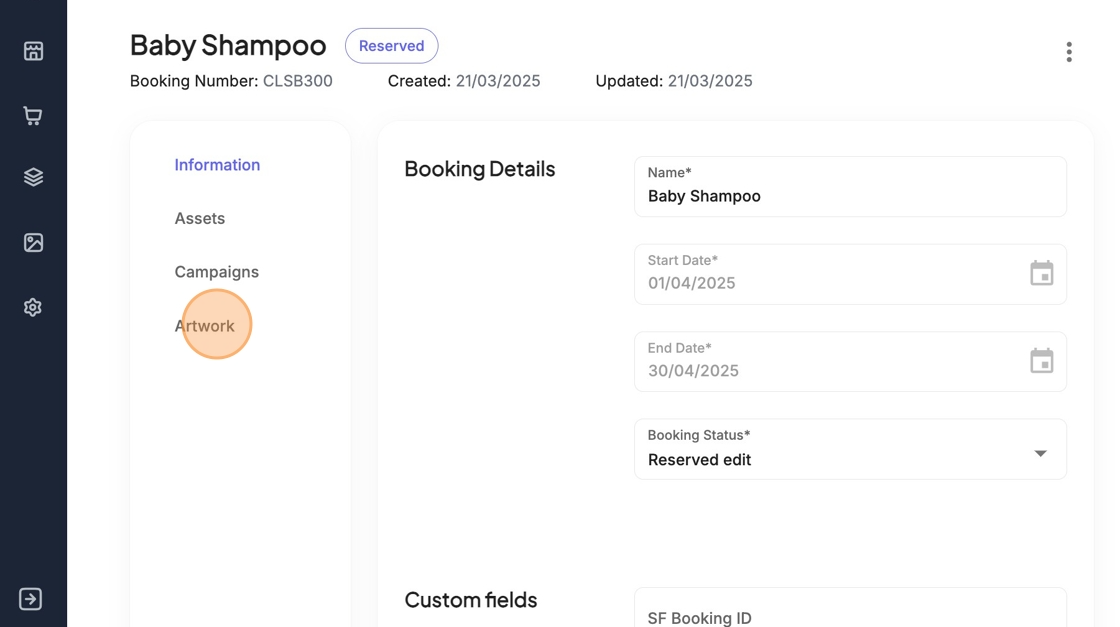
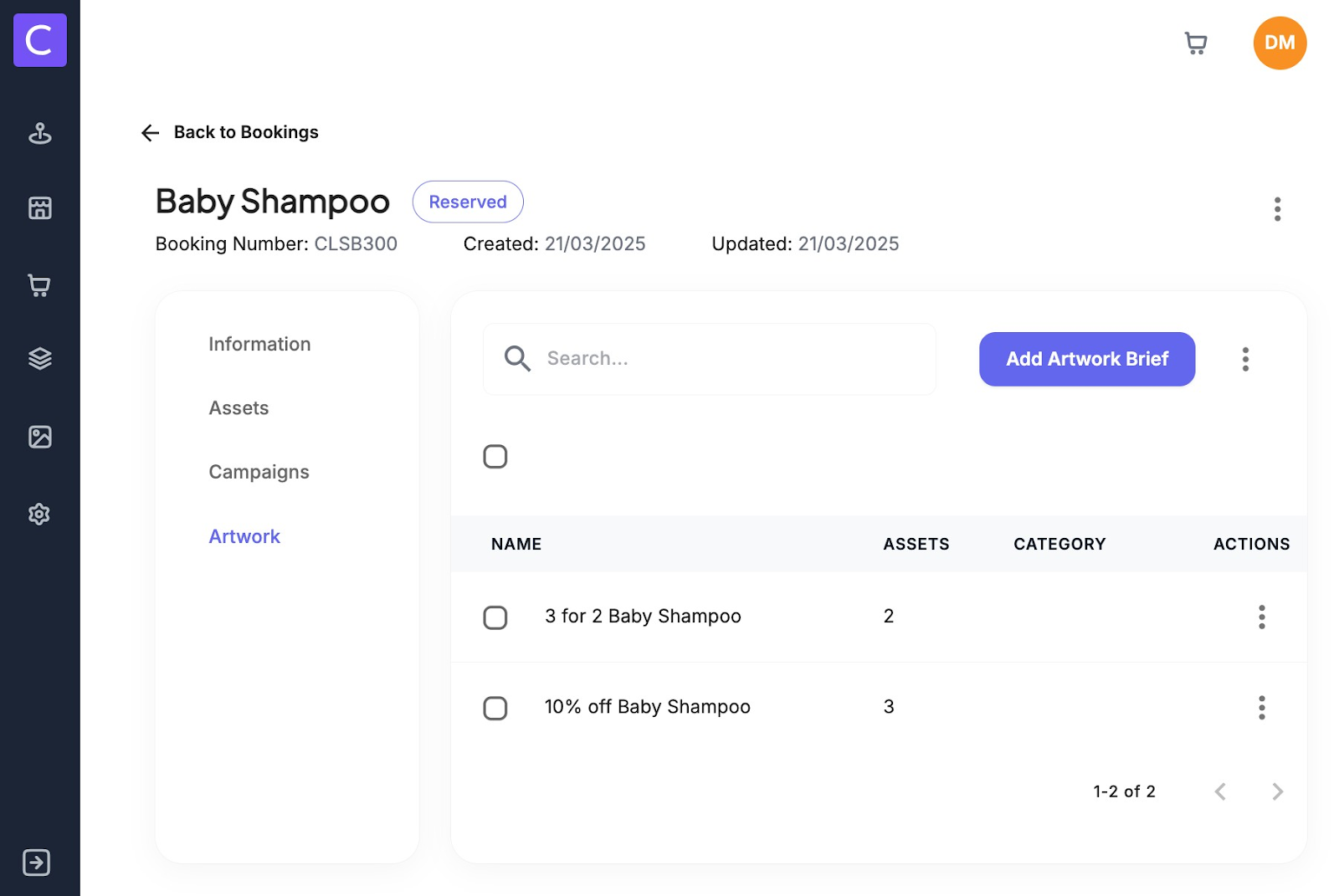
2. Select the booking you want to add artwork briefs to and navigate to the artwork tab within the booking form.
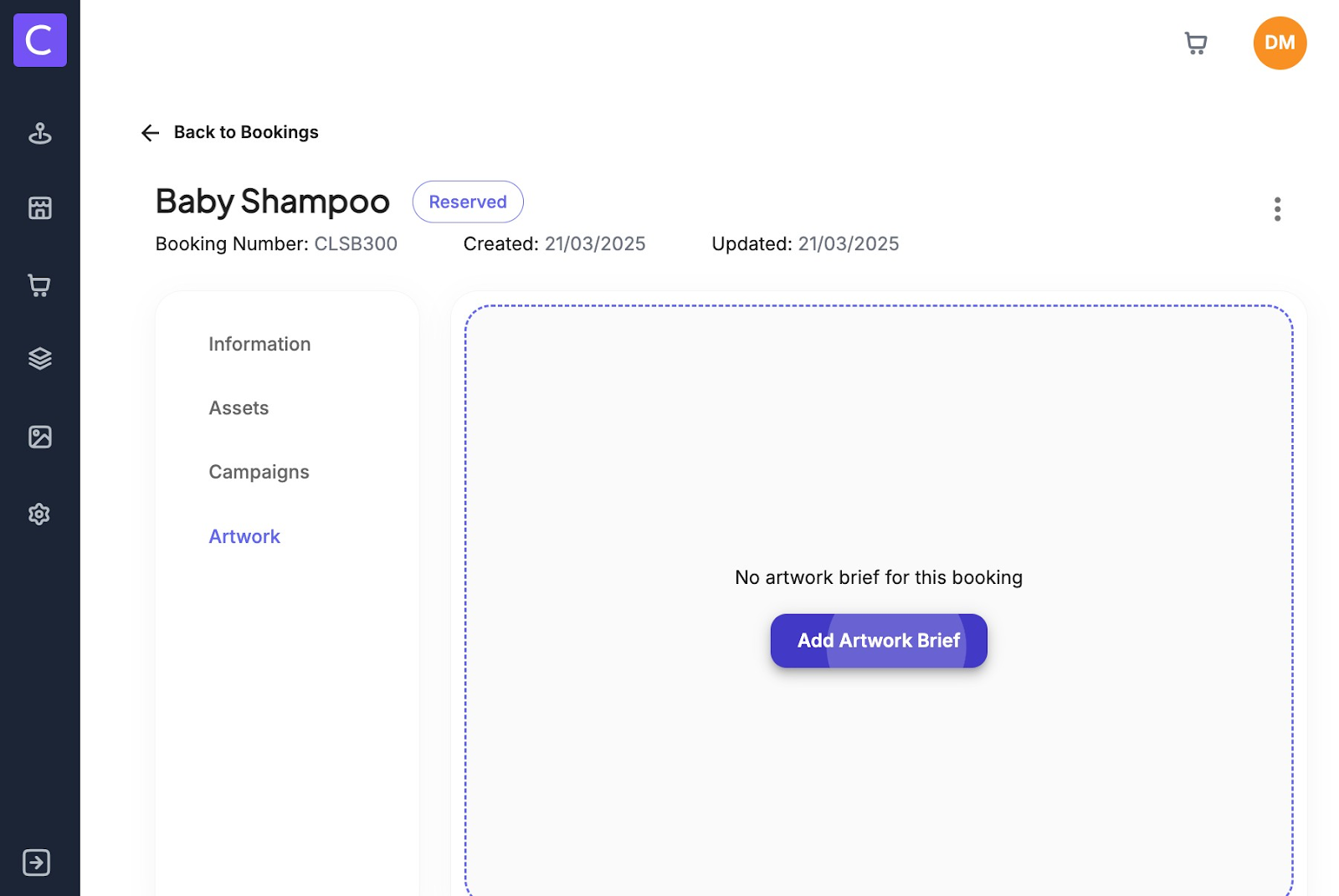
3. To add artwork briefs to a booking simply click Add Artwork Brief
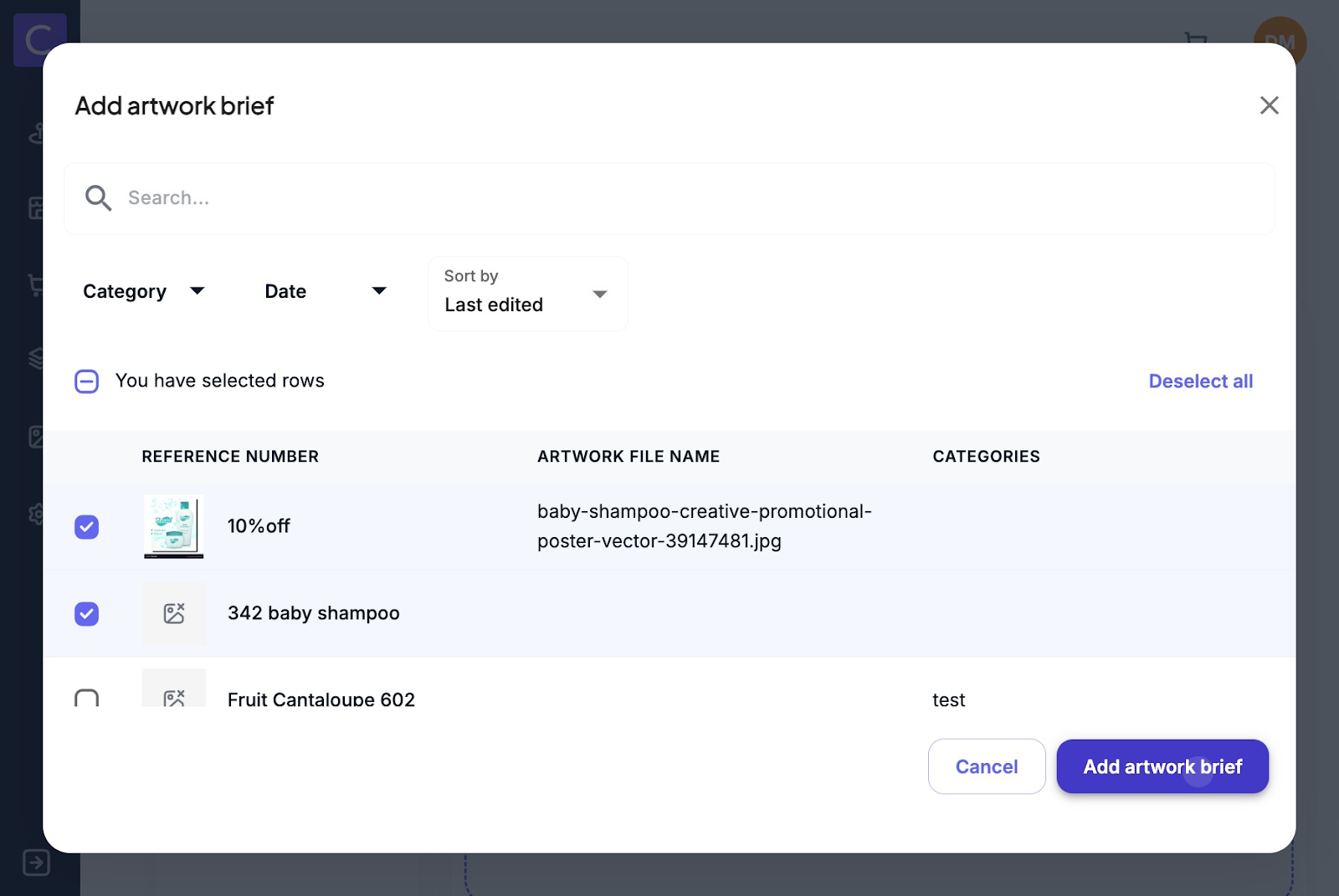
4. Here users can select the briefs you want to add and click Add Artwork Brief. Note: Briefs are created in the Admin Artwork Briefs page.
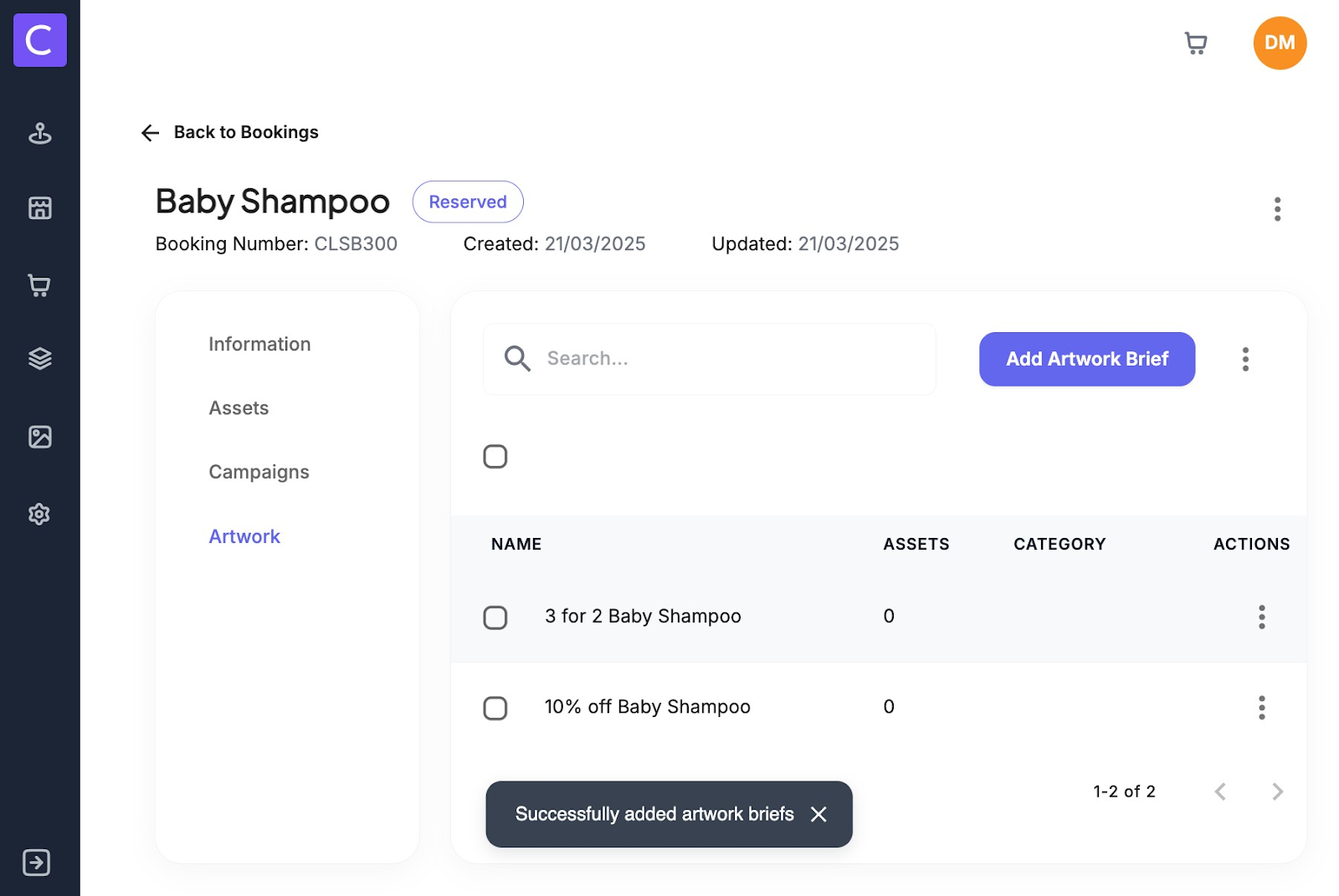
5. Once users have added briefs to your booking they can be edited or associated to assets within the booking simply choose the brief you want to work on
6. Here users can edit the brief information if needed by going to the Brief Information tab. Users can edit any of the information you need to. Users need to click Save at the bottom of the screen to save changes made
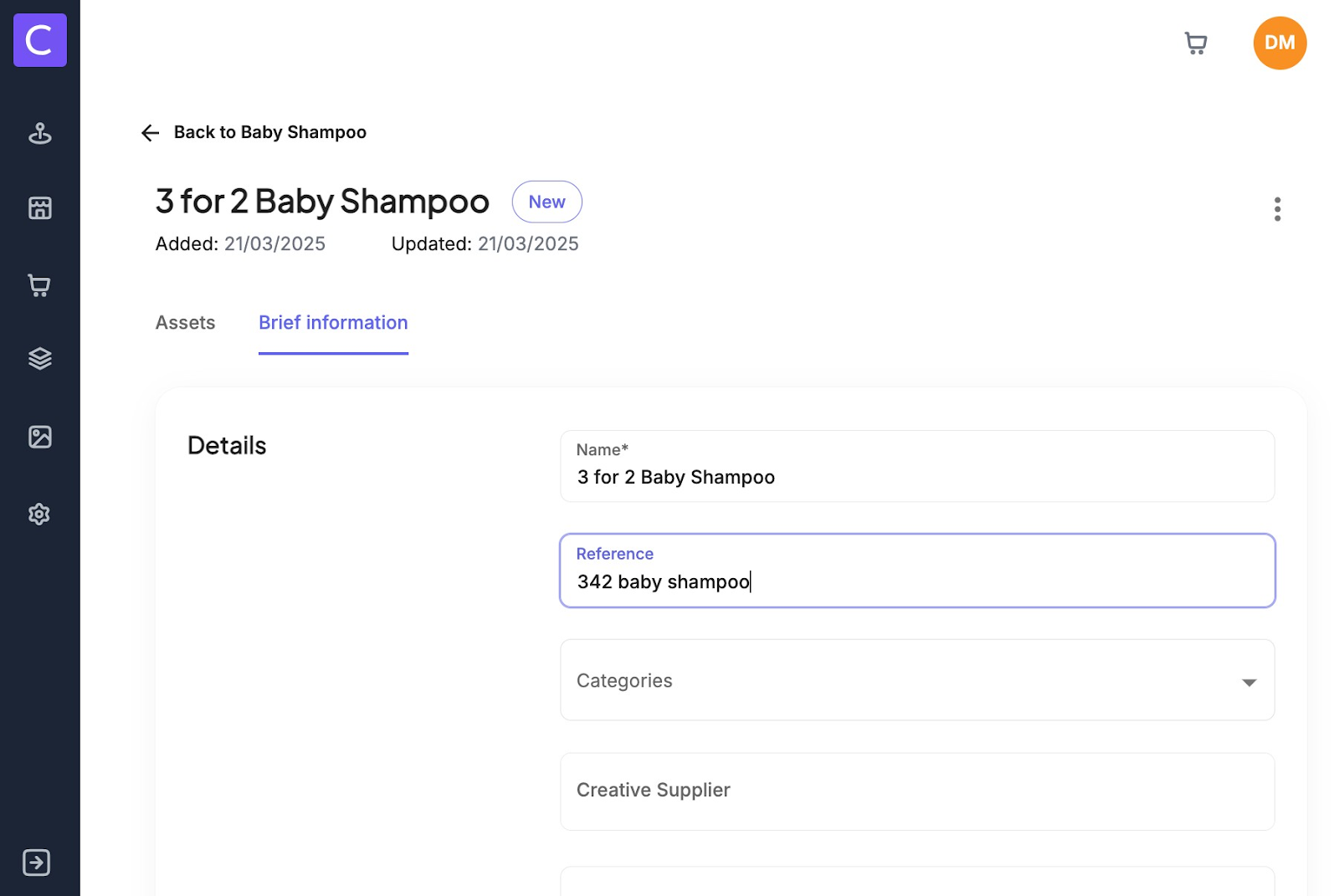
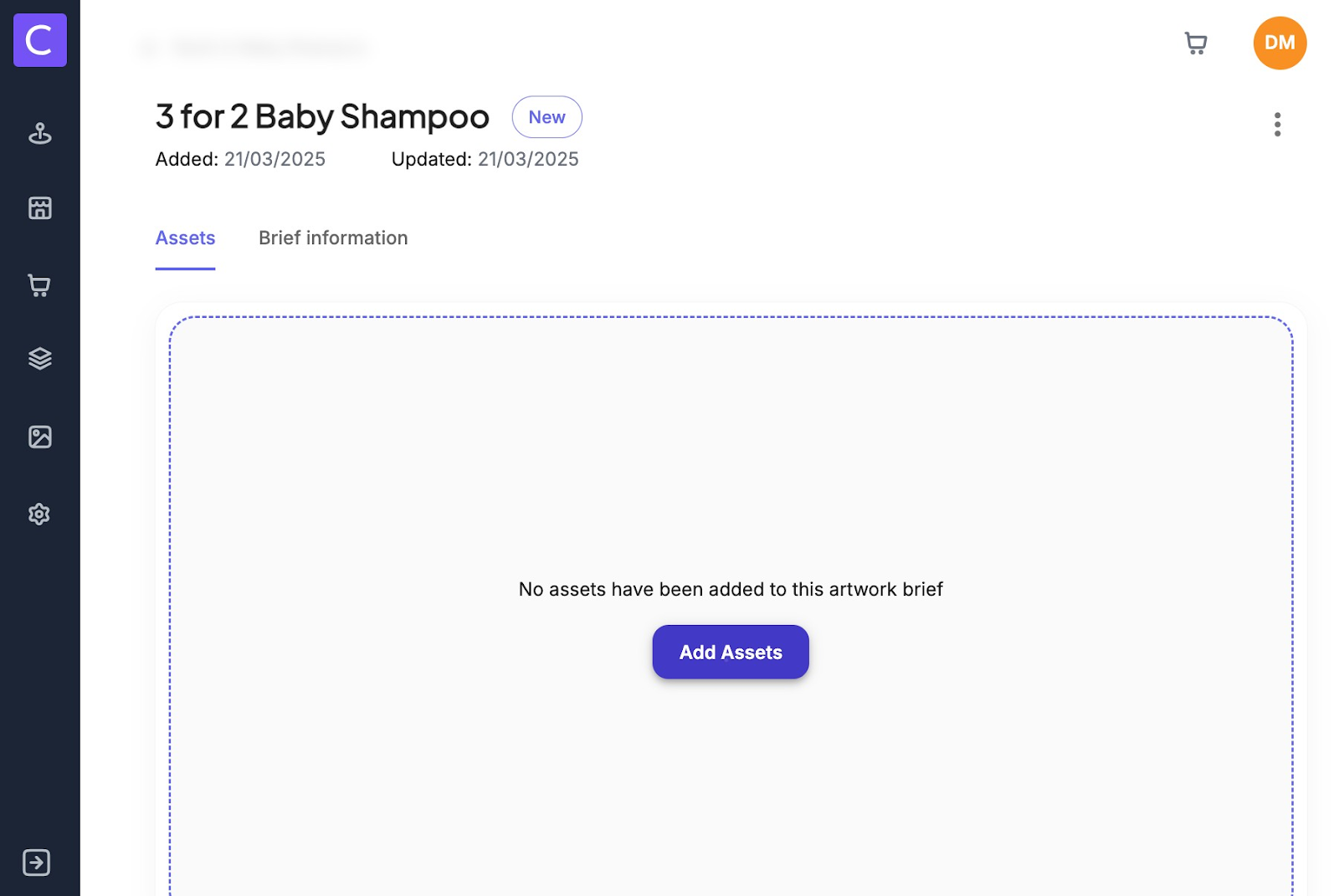
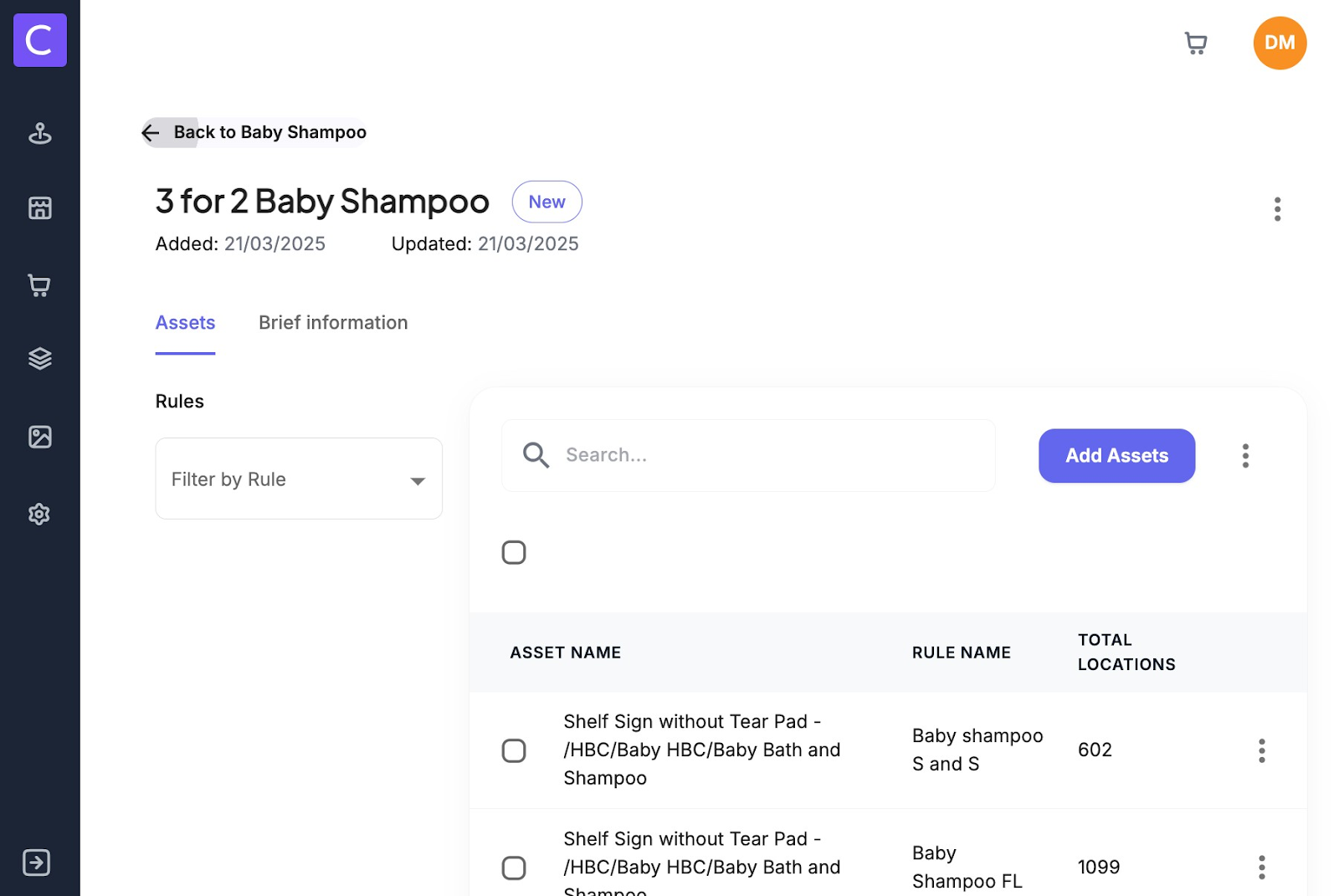
7. To associate assets to a brief on the Assets tab click the Add Assets button
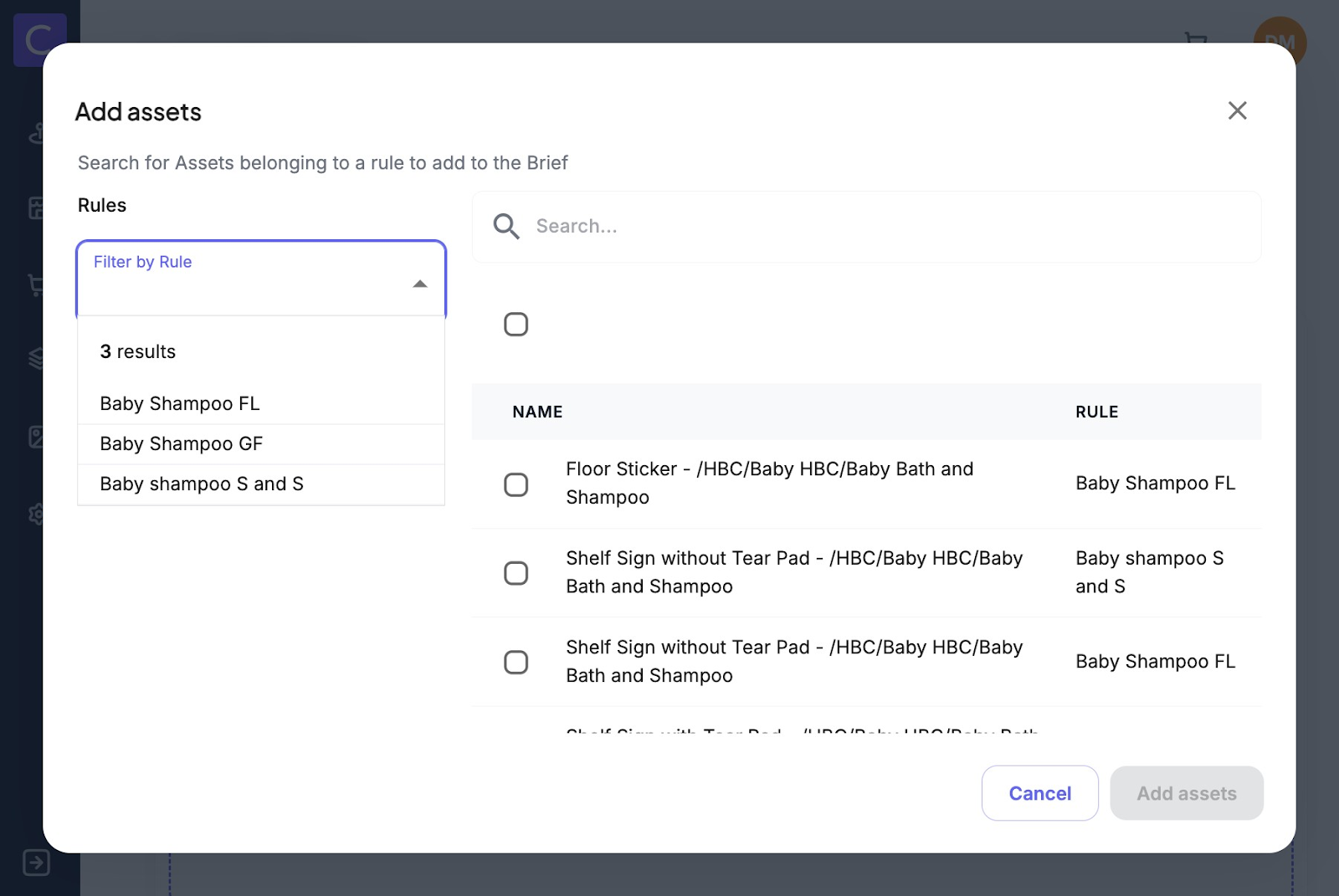
8. Here users can filter the assets in the booking by their rule
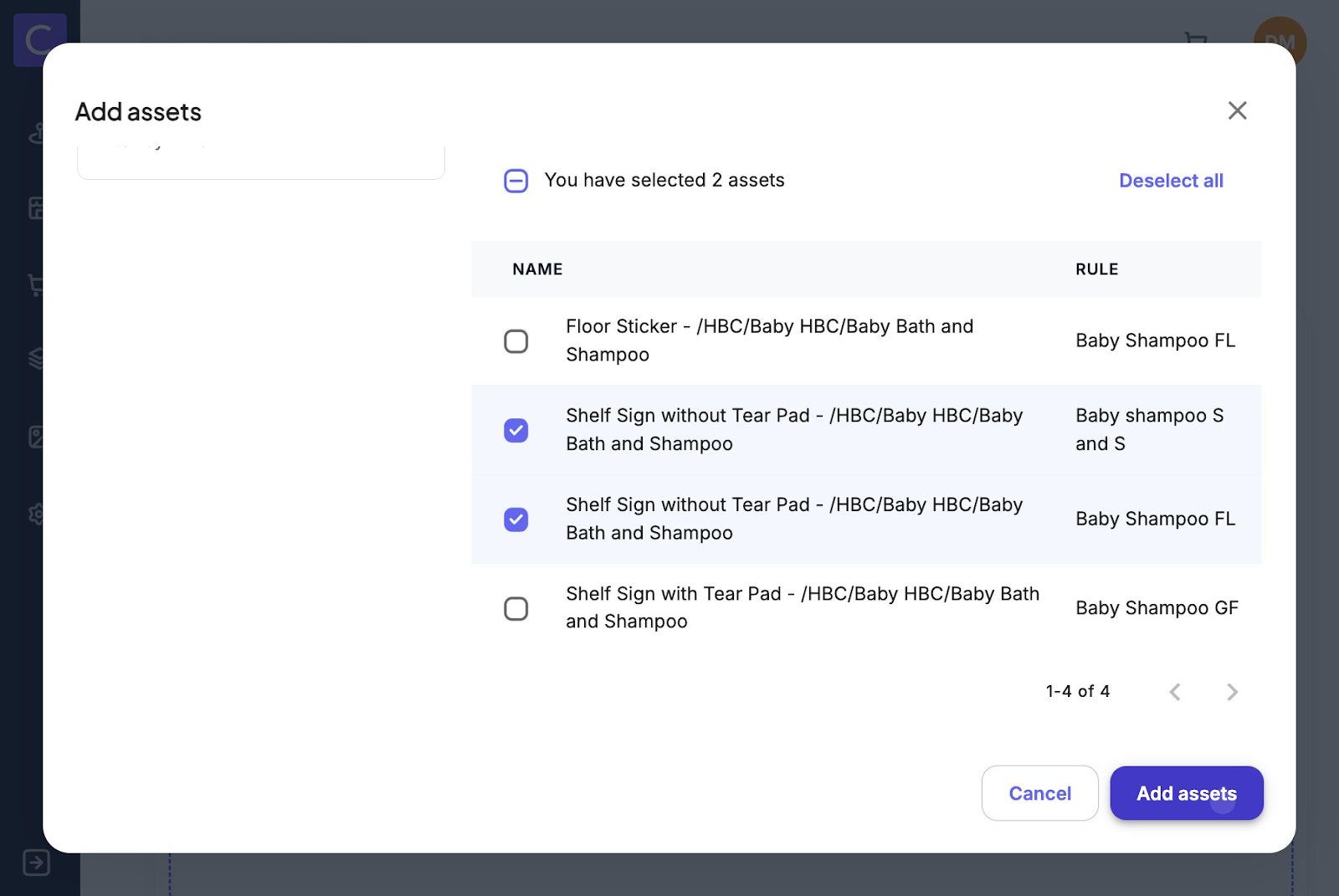
9. Select the assets you want to add to the Artwork brief and click Add assets
10. Users can see a list of assets added to a brief, the rule the belong to and the total location that asset appears in once they have been added to a brief
11. Users can also see if a brief has assets associated to it and how many from the artwork tab in the booking form
Was this article helpful?
That’s Great!
Thank you for your feedback
Sorry! We couldn't be helpful
Thank you for your feedback
Feedback sent
We appreciate your effort and will try to fix the article