This method lets you manage multiple Assets at once by using the bulk action to upload new Assets or update existing ones.
Admin: Full Access
Super User: Edit Only
Basic User: View Only
Navigate to Admin > Assets,
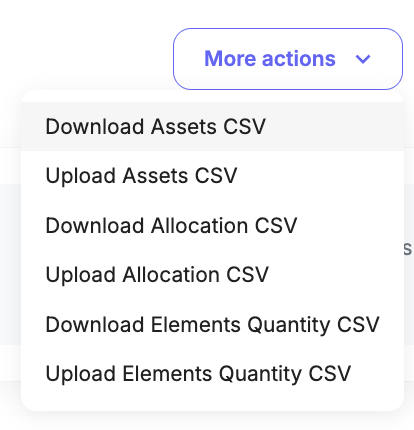
Select the More actions dropdown button. (top right).
Download the Assets List
Select Download Assets CSV.
You will export a CSV file of all active Assets and their data fields, including any linked data and newly created Custom Fields.
You can do the following on the export:
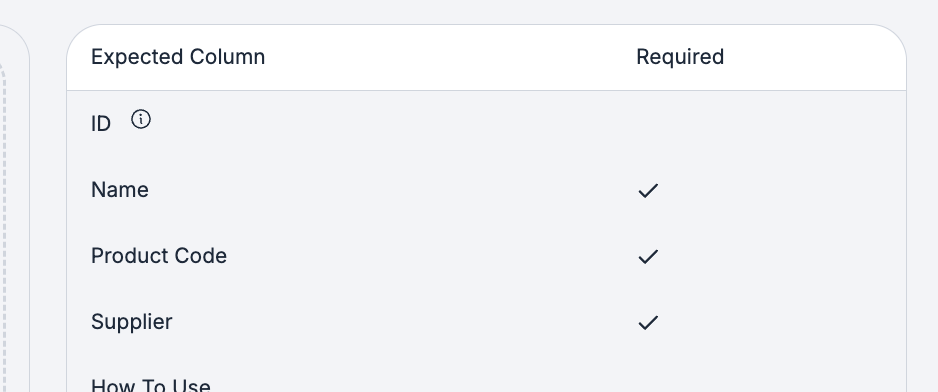
Create a new Asset, only the Name field is required.
Amend existing data, including Custom Fields

To Import New Assets or new amendments
Navigate to the Assets page.
Click the More actions dropdown button in the top-right corner.
Select Upload Assets CSV.
On the upload screen, click Browse files or drag and drop your prepared CSV file.
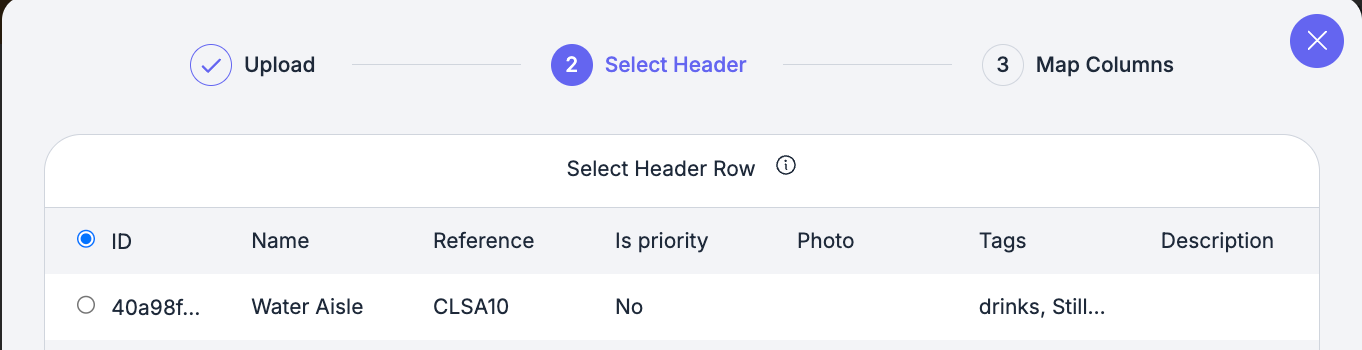
Review the sample data table to ensure the Header Row is correct, then select Continue.
Make sure you have added the required fields.
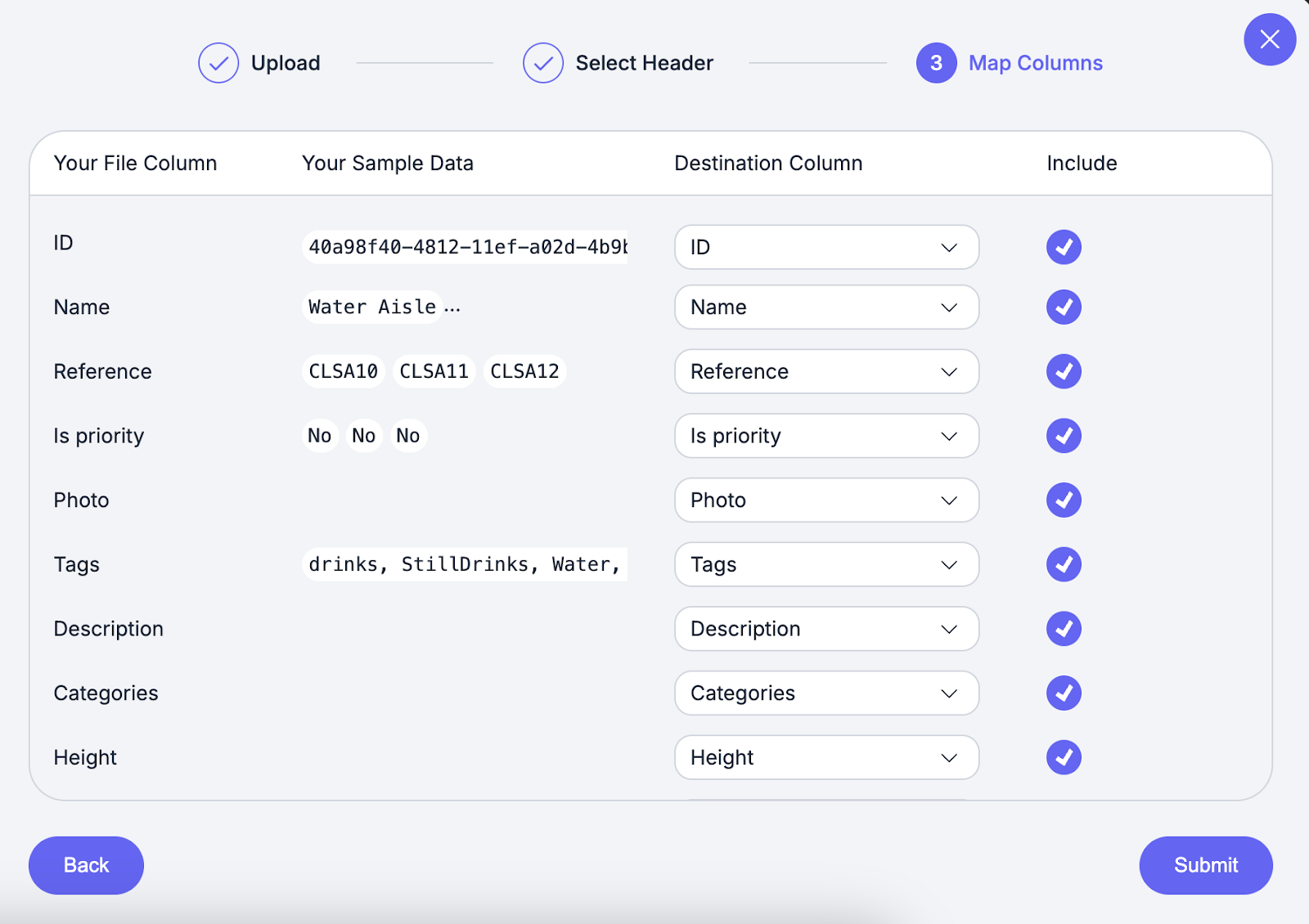
Match the columns from your CSV to the system fields.
Leave any columns you don’t want to import blank (Only Name field is required for new Asset creations)
Once mapping is complete, select Submit.
Wait for the import to complete.
When the pop-up shows Success, your data has been imported, select Close.
Your new Assets will now appear in the Active list.
Assets - Bulk upload Allocations to Locations
Was this article helpful?
That’s Great!
Thank you for your feedback
Sorry! We couldn't be helpful
Thank you for your feedback
Feedback sent
We appreciate your effort and will try to fix the article