This article explains how to create a new Allocation Rule to automatically target locations for campaign items.
Admin: Full Access
Super User: Edit Only
Basic User: View Only
Open Allocation Rules
Navigate to the Admin dashboard.
Select the Allocation Rules tile.
Create a Rule
Click + Create new rule in the top-right corner
A new rule will open with the default name New Rule.
Name the Rule
Click the pencil icon next to the rule name.
Enter a clear, descriptive name for the rule.
Example:
Door Decal – Midlands Stores
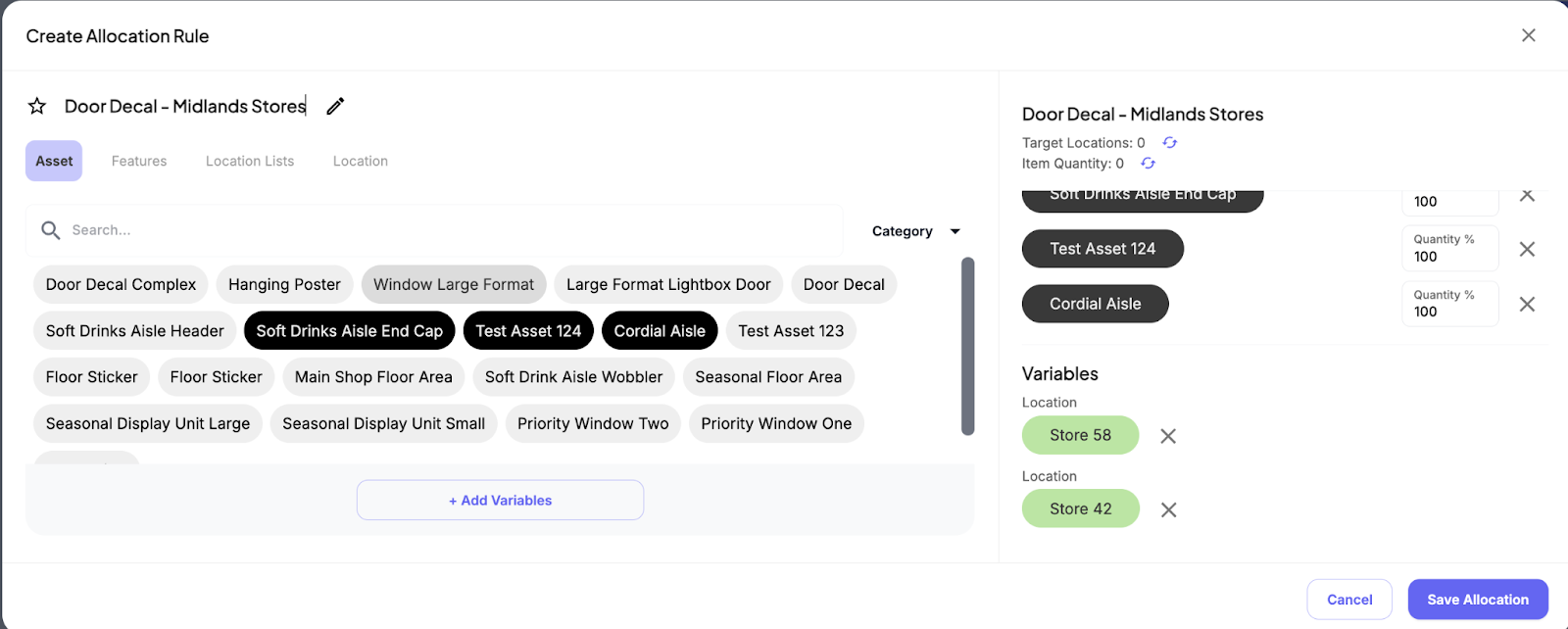
Select the Primary Rule
Choose how the system should target locations:
Asset
Features
Location Lists
Location
Select the required option and choose the relevant values.
Add Variables (Optional)
Click + Add Variables.
Add additional targeting conditions to refine your rule.
Example:
Asset = Door Decal
Feature = Region Midlands
Review Target Locations
The system will automatically calculate:
Target Locations
Item Quantity
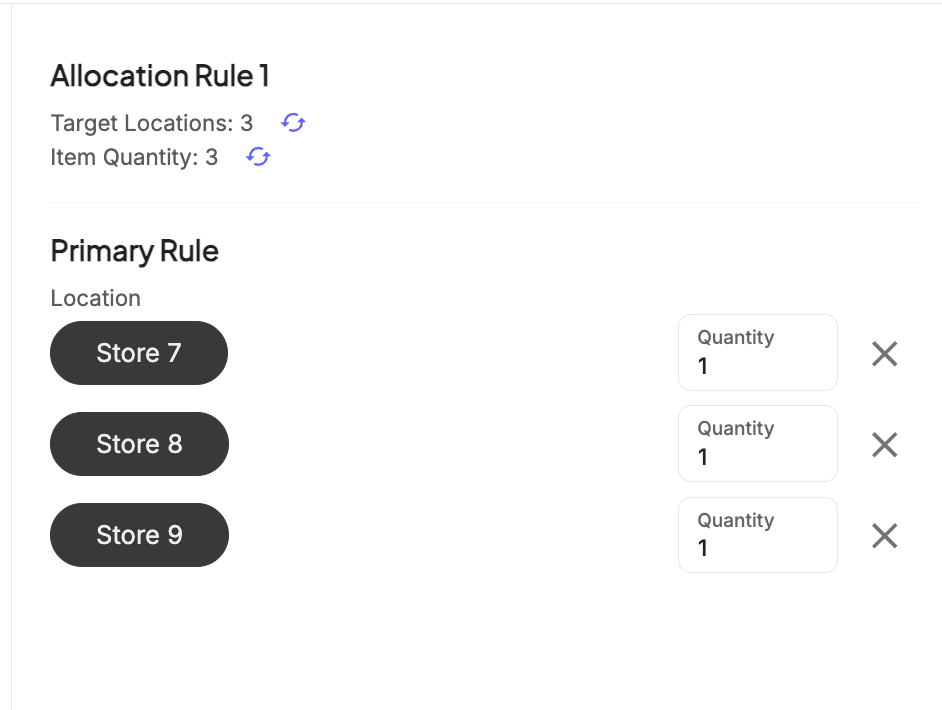
Review the results to ensure the rule is targeting the correct stores.
Save the Rule
Click Save Allocation.
The rule will now appear in the Active Rules list.
Was this article helpful?
That’s Great!
Thank you for your feedback
Sorry! We couldn't be helpful
Thank you for your feedback
Feedback sent
We appreciate your effort and will try to fix the article